
End Screen Outro (“Please Subscribe” Card)
End every clip with a short animated subscribe card — customizable text, channel handle, length, sound, and card image.
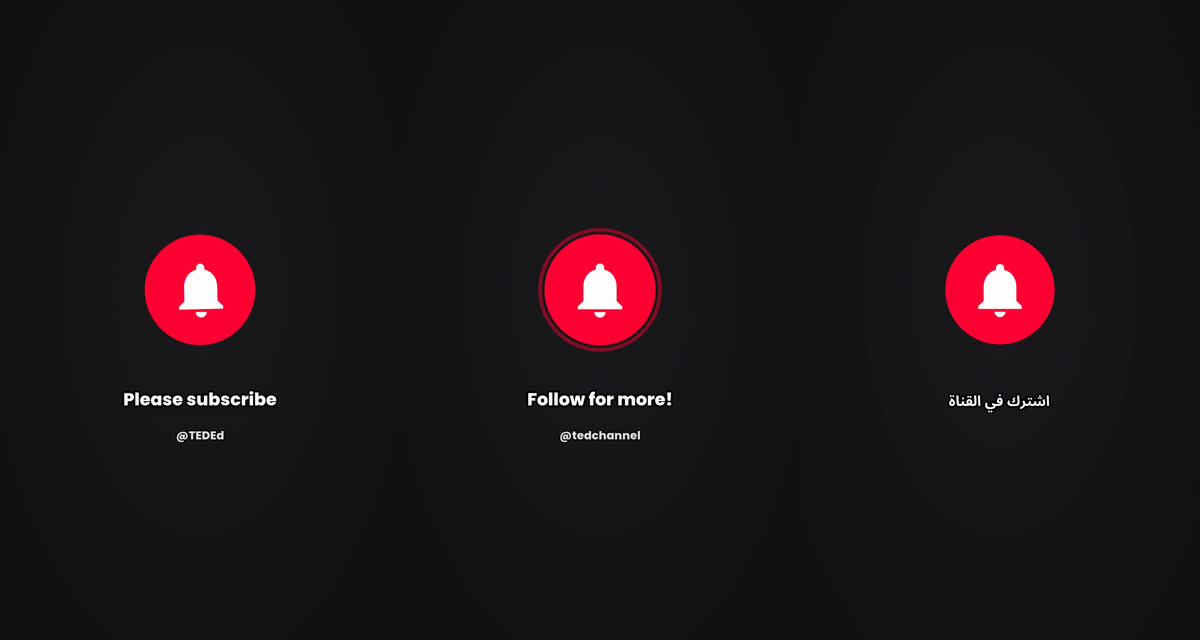
The End screen adds a short animated “Please subscribe” card to the end of every clip, so your shorts finish with a clear call-to-action instead of cutting off.
Turn it on
For a single video: paste your link on the dashboard, open Advanced Options, and switch on End screen.
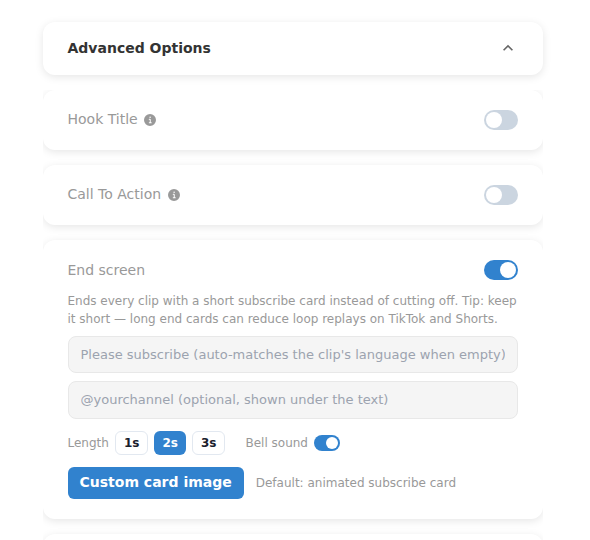
For a channel automation: open your automation → Edit Settings → Clip Settings → End screen. Every clip the automation creates will end with the card — and the @handle field is pre-filled with your channel’s handle.
What you can customize
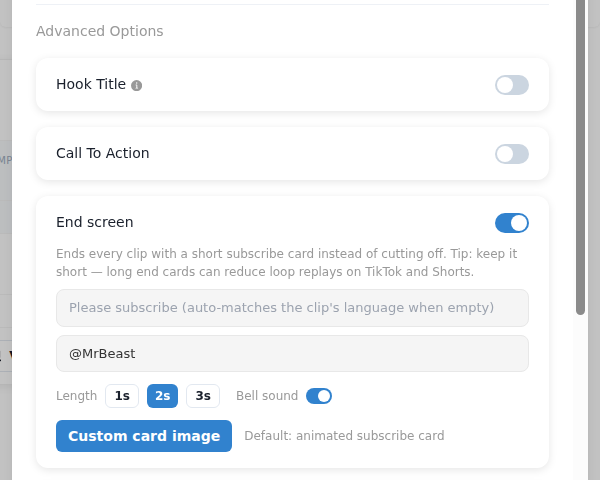
Text — type anything you like, or leave it empty and the card automatically matches the clip’s spoken language (28 languages supported).
Channel handle — optionally show your @handle in smaller text under the message.
Length — 1, 2, or 3 seconds. We recommend keeping it short (default 2s).
Bell sound — a subtle chime plays when the card appears. On by default; switch it off if you prefer a silent ending.
Card image — upload your own image or GIF to replace the default animated bell card. Non-vertical images are centered on a clean dark background.
Good to know
The end screen is off by default. Short end cards help protect loop replays, which TikTok and YouTube Shorts reward — that’s also why we cap the length at 3 seconds.
Automations that post only to TikTok or Instagram automatically use “Follow for more!” wording instead of “subscribe”.
You’ll see the end screen right in the editor preview, and it stays on your clip through re-compiles and edits.
It’s included in your clip at no extra credit cost.