
Color Filters (B&W, Warm, Cool, Vintage, Vivid)
Give your clips a look with one click — B&W, Warm, Cool, Vintage or Vivid — from the dashboard, the editor, or a channel automation.
Color filters give your clips a consistent look with one click. Choose from five presets, or keep the original colors.
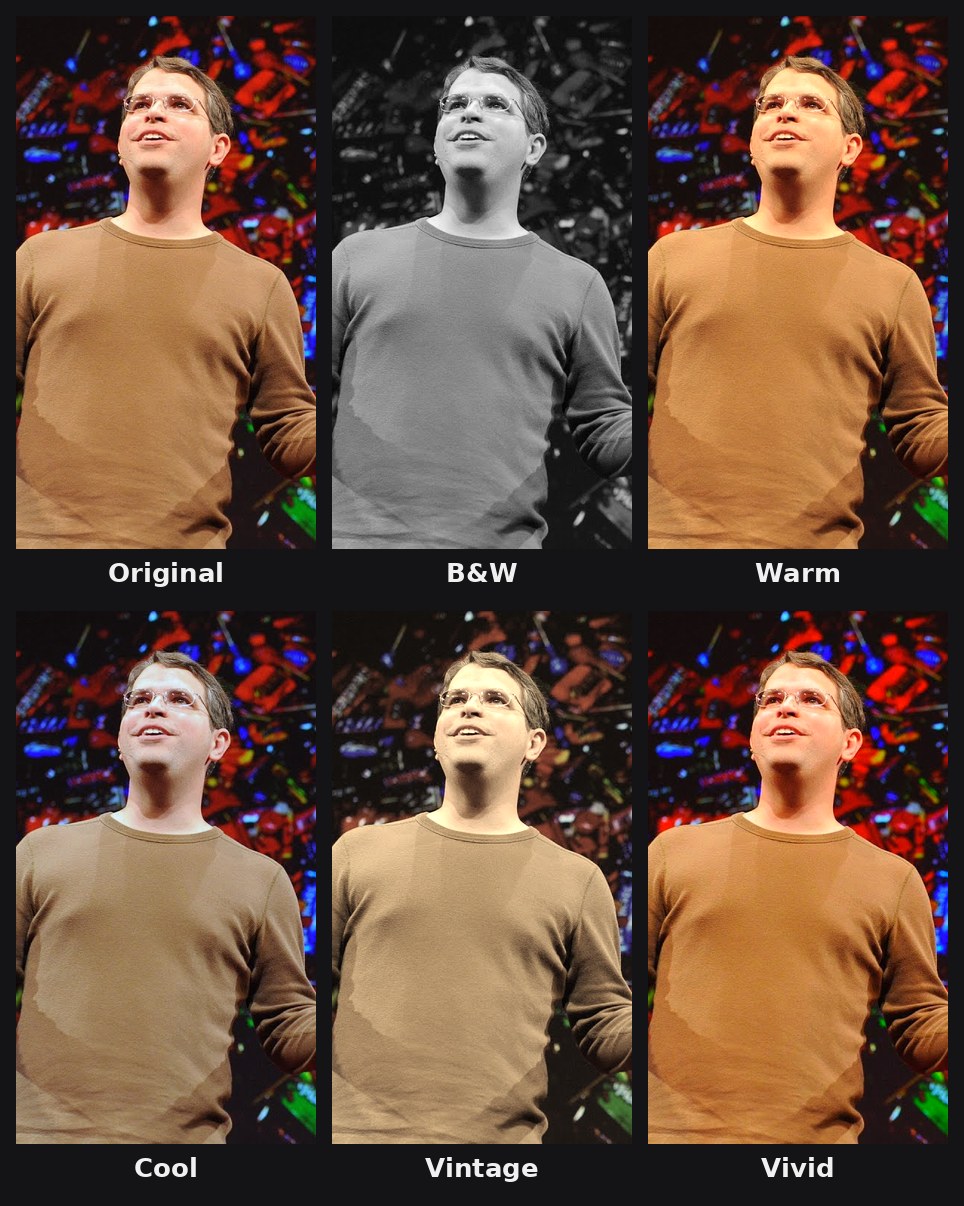
| Filter | Look |
|---|---|
| Original | No filter (default) |
| B&W | Classic black and white |
| Warm | Golden, sunny tones |
| Cool | Crisp, slightly blue tones |
| Vintage | Soft, faded film look |
| Vivid | Stronger, punchier colors |
Add a filter to a new video
Paste your link on the dashboard, open Advanced Options, and pick a look under Filter (right after Layout). Each option previews your own video's thumbnail, so you can see the result before you create your clips. Use the arrows to see all six.
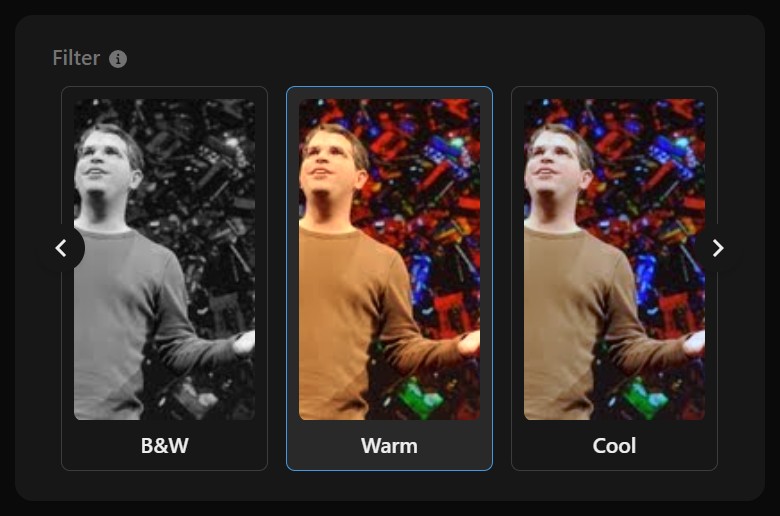
Every clip from that video gets the filter. Your choice is remembered for your next video, and Reset Preference sets it back to Original.
Change the filter on a clip you already made
- Open the clip in the editor.
- On the Style tab, scroll to Filter and pick a look. The preview updates right away.
- Click Save & Recompile.
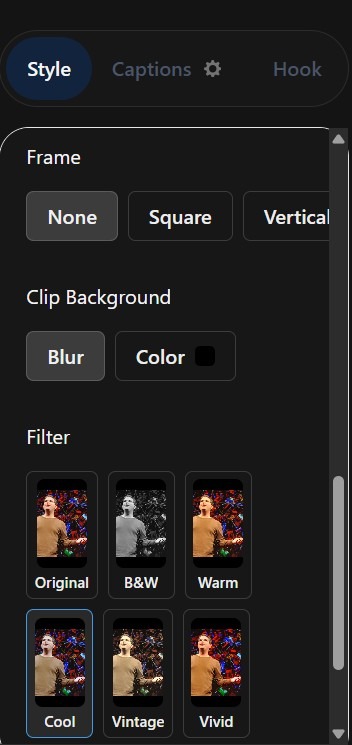
You can switch filters as often as you like. Choose Original to remove the filter.
Use a filter in a channel automation
Open your automation → Edit Settings → Clip Settings → Filter. Every new clip the automation creates uses that look, and the filter also appears on the confirmation step.
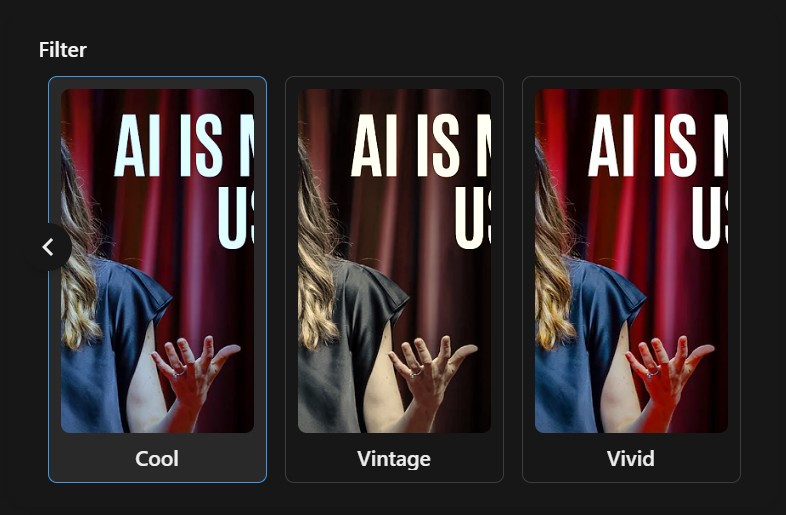
The setting applies to clips created from that point on. Clips the automation has already made aren't changed.
Good to know
- What gets filtered: your main footage, including the blurred background around it.
- What stays the same: captions, hook title, call to action, image and text overlays, B-roll, game video and the end screen keep their original colors.
- One filter per clip: the filter applies to the whole clip.
- What you see is what you get: the editor preview matches the final exported video.
- Credits: filters are free. They don't change the credit cost.
Was this helpful?