
How to Cut or Trim Clips
The editor is organized into two phases: Cut and Edit.
On the Cut page, you have a text editor and a timeline editor. You can cut clips in both areas.
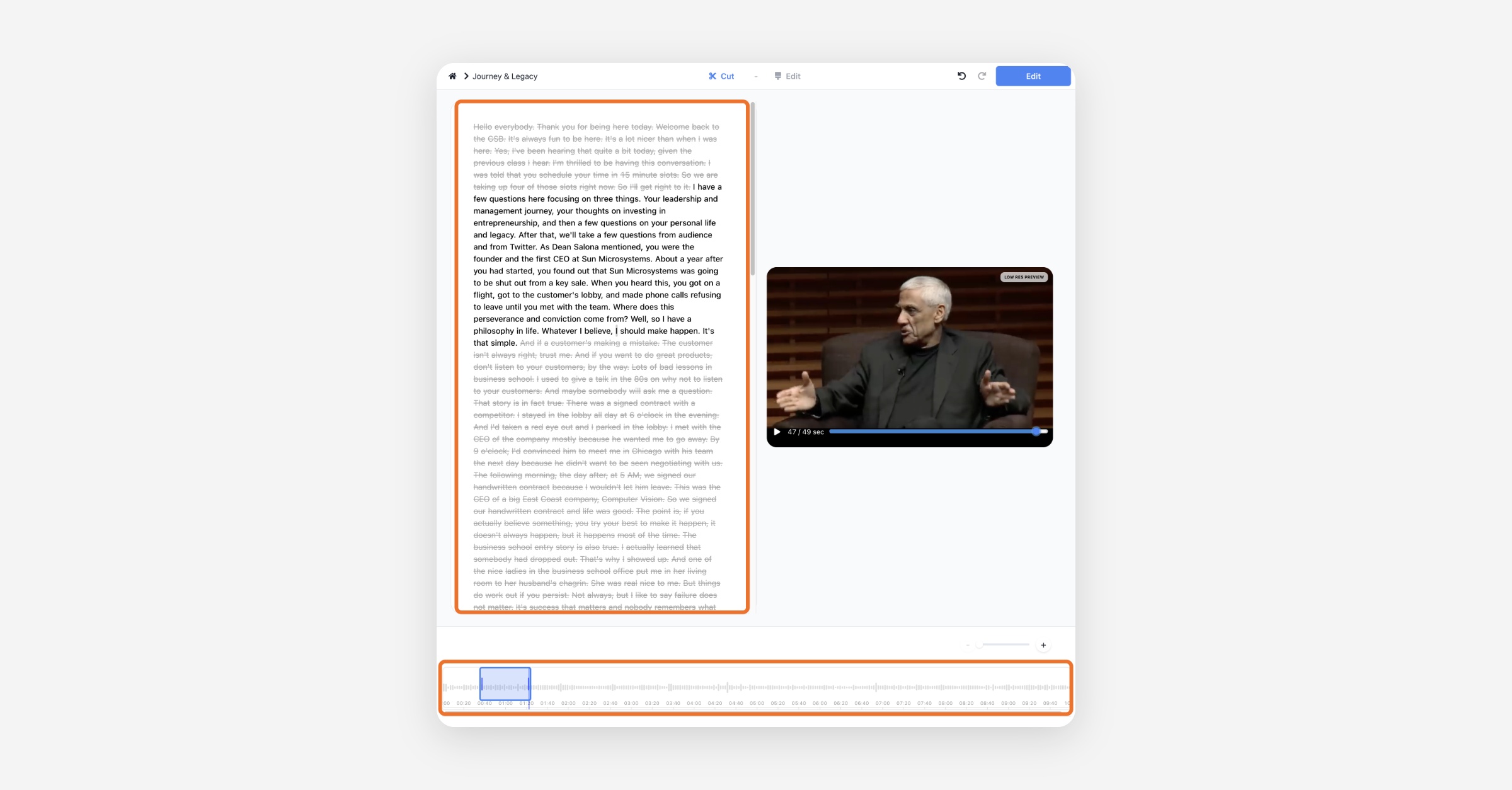
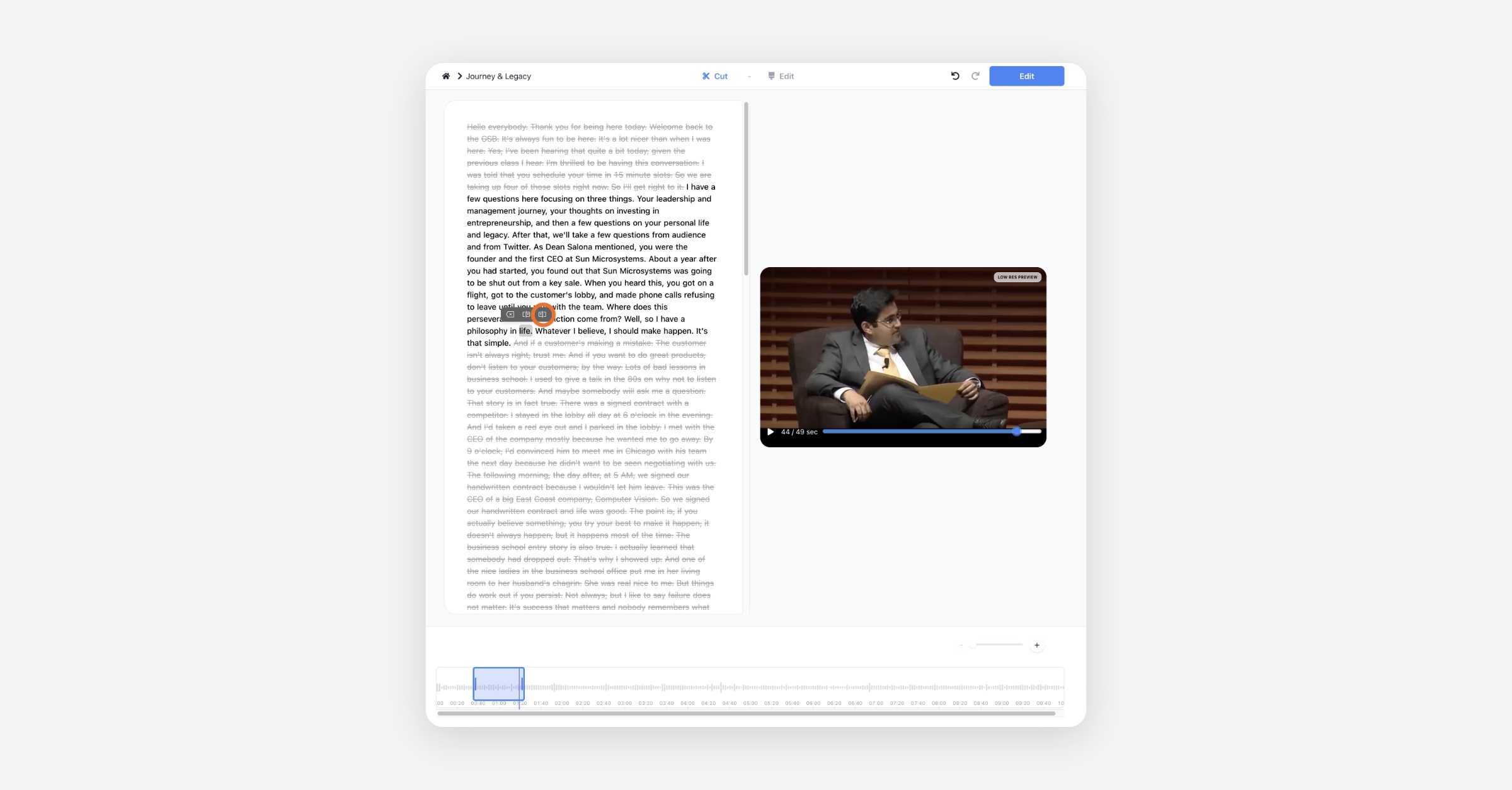
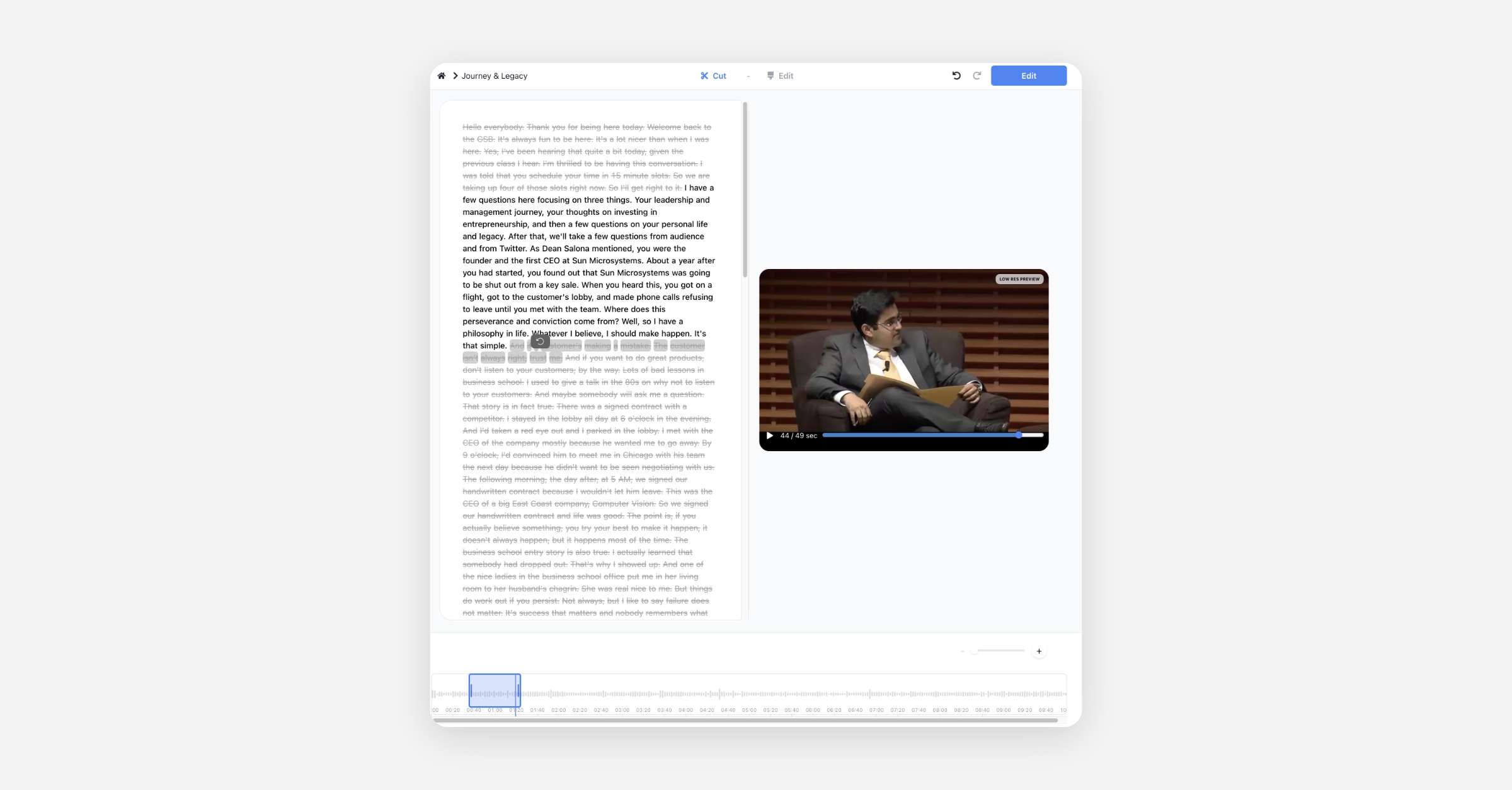
First of all, in the text editor, the active black letters in the text are the ones that correspond to that clip in the entire video. You can select a specific word, and select the button you've marked to end the video at that word. (You can click the button to the left of the button you've marked to start the video from that word.)
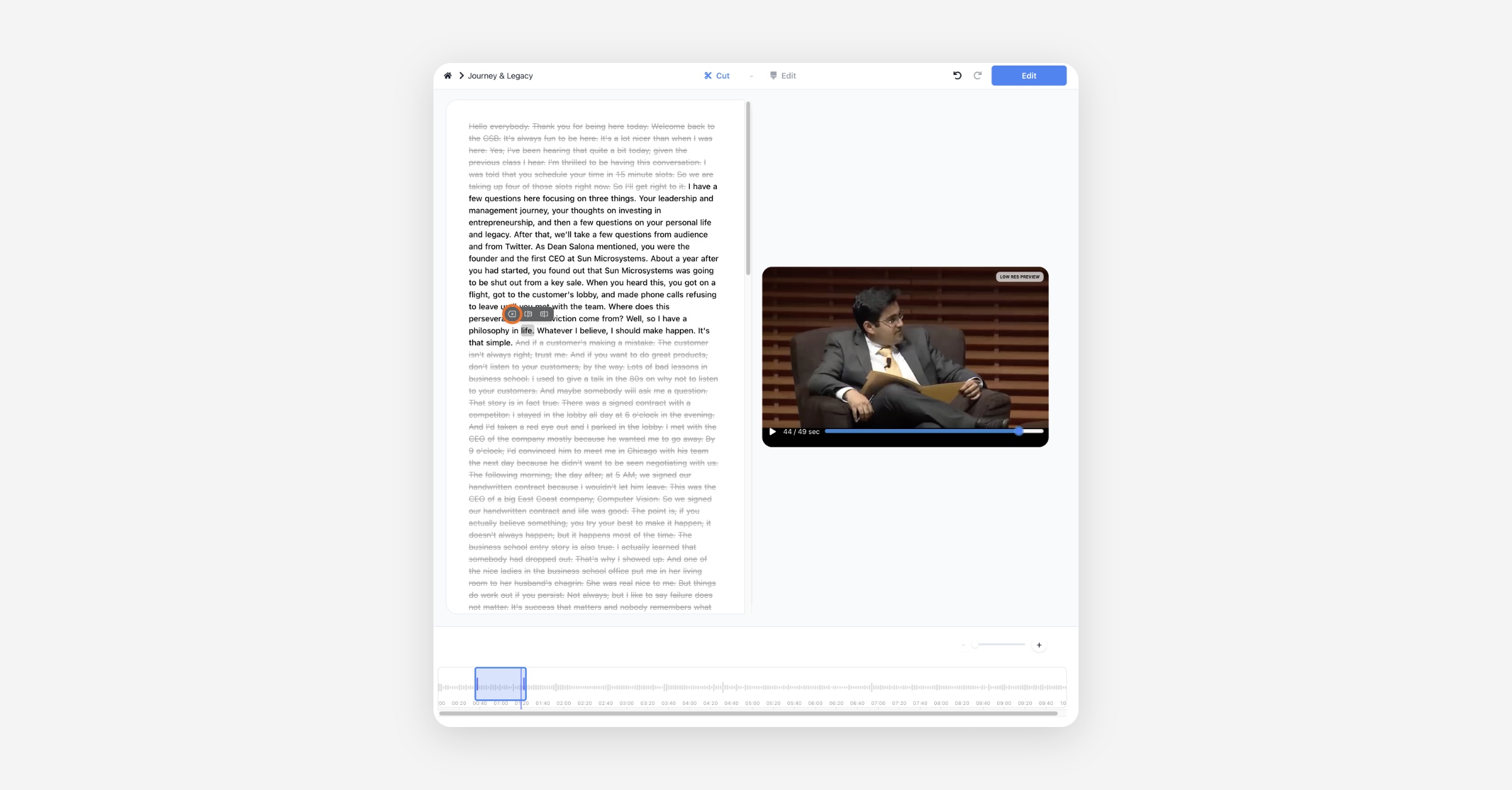
You can also select a specific word and press the X button to delete the portion of the video that says that word.
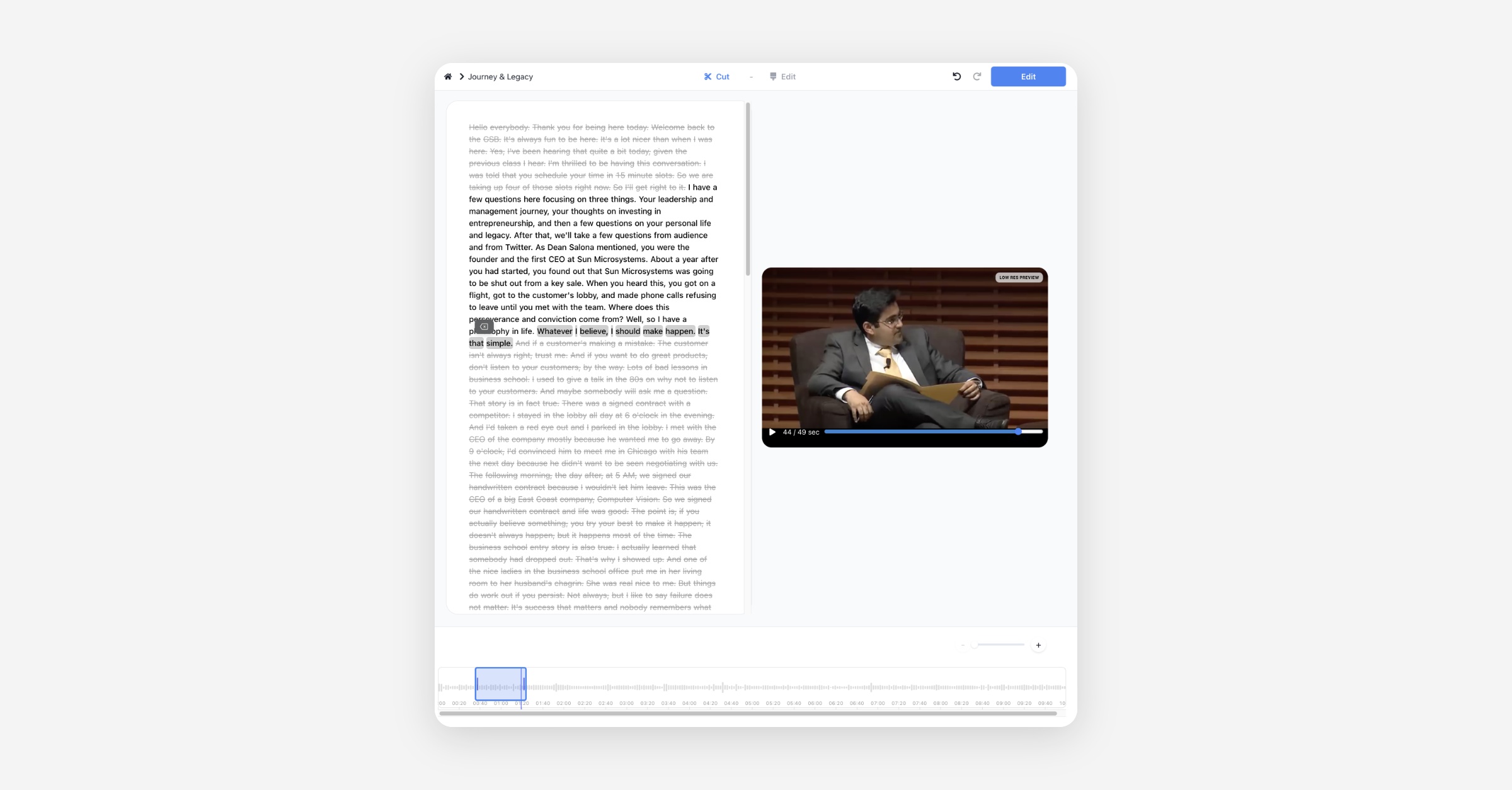
You can also drag to select multiple words and delete multiple words at once.
You can also drag specific words from the grayed out active letters and click the Restore button to include them in the video clip again
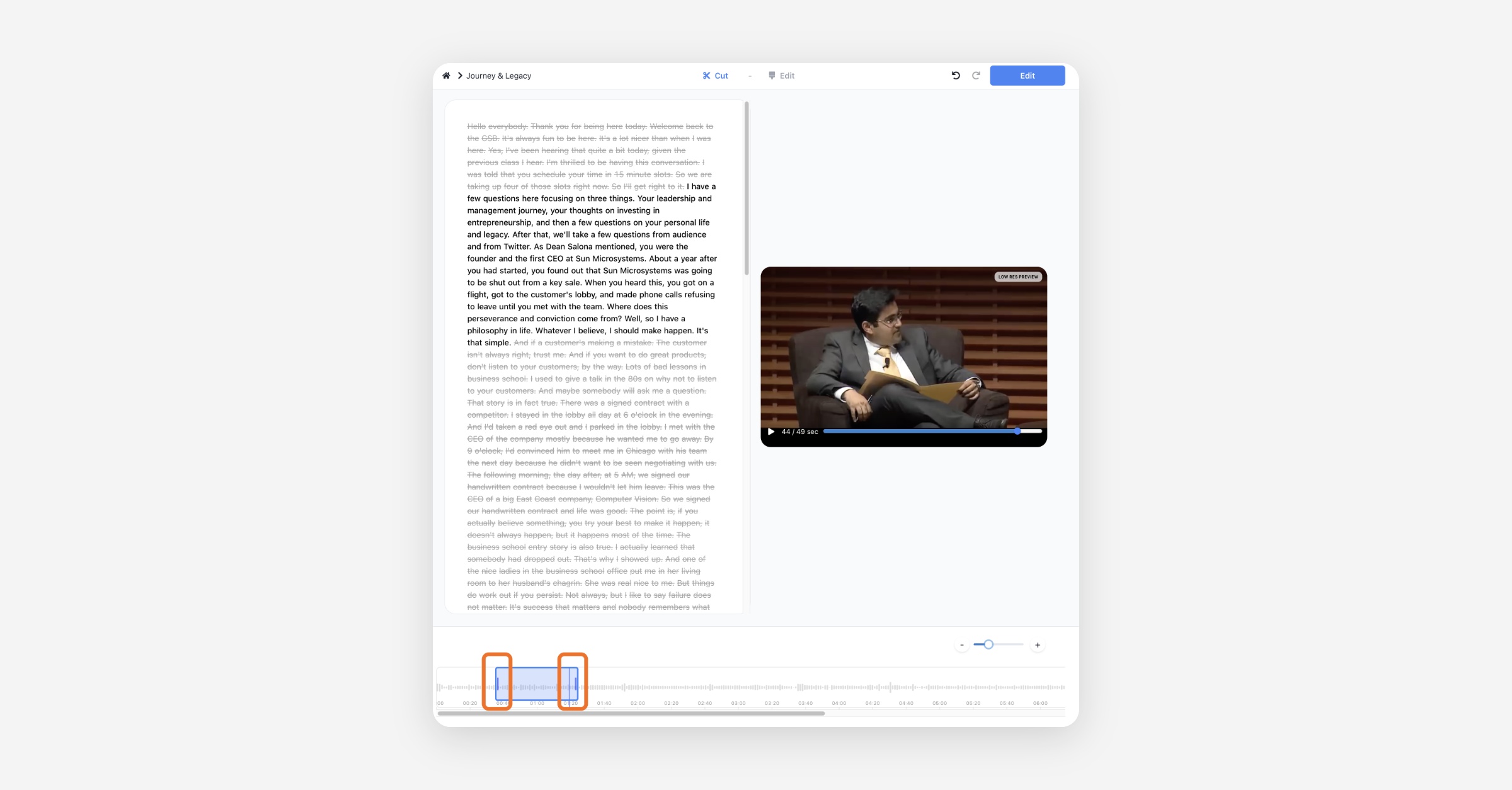
In the timeline below, you can drag the left or right trimming handles to adjust the start and end points of the video clips.
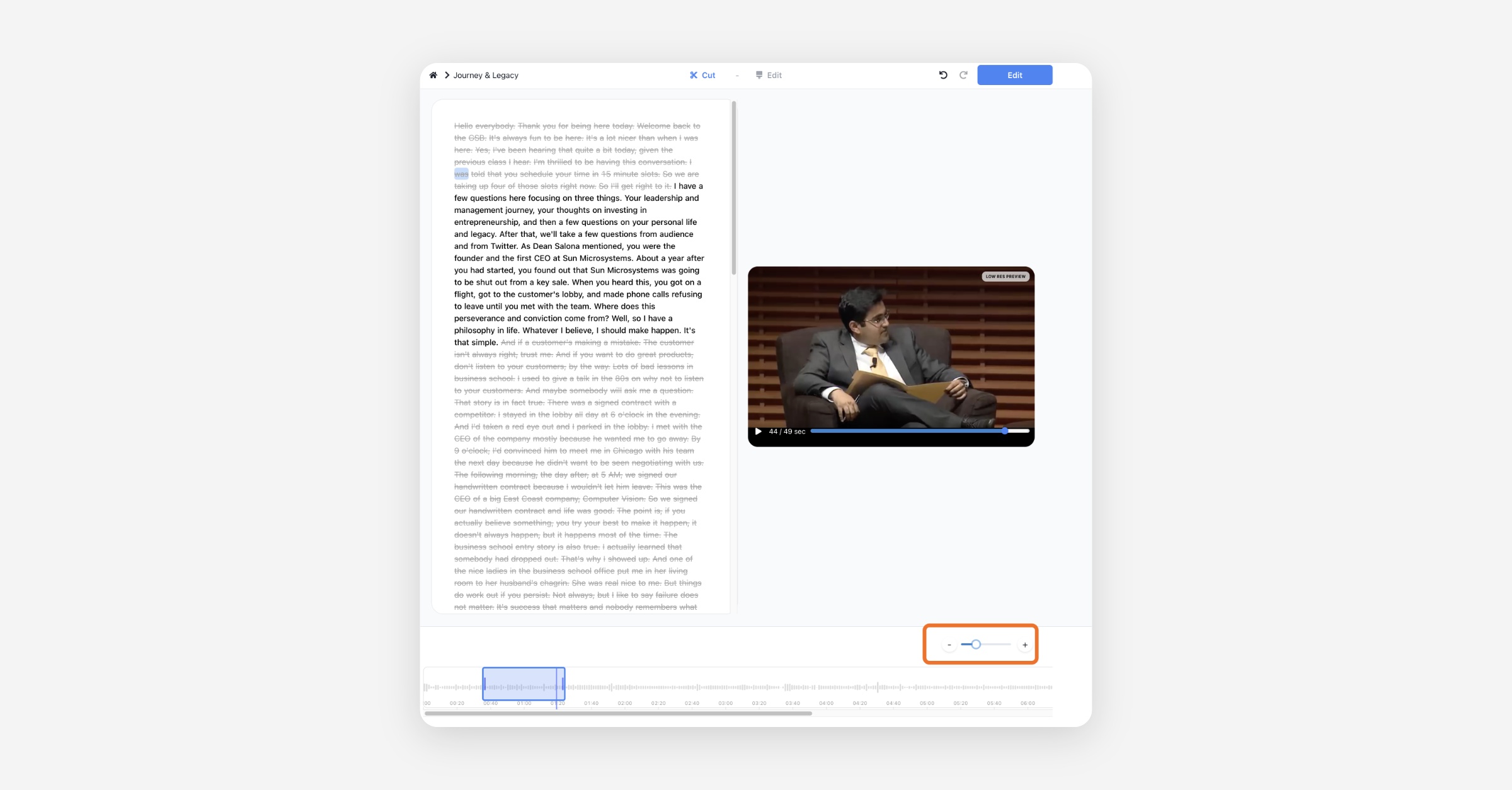
Controls for zooming in and out of the timeline are available here.
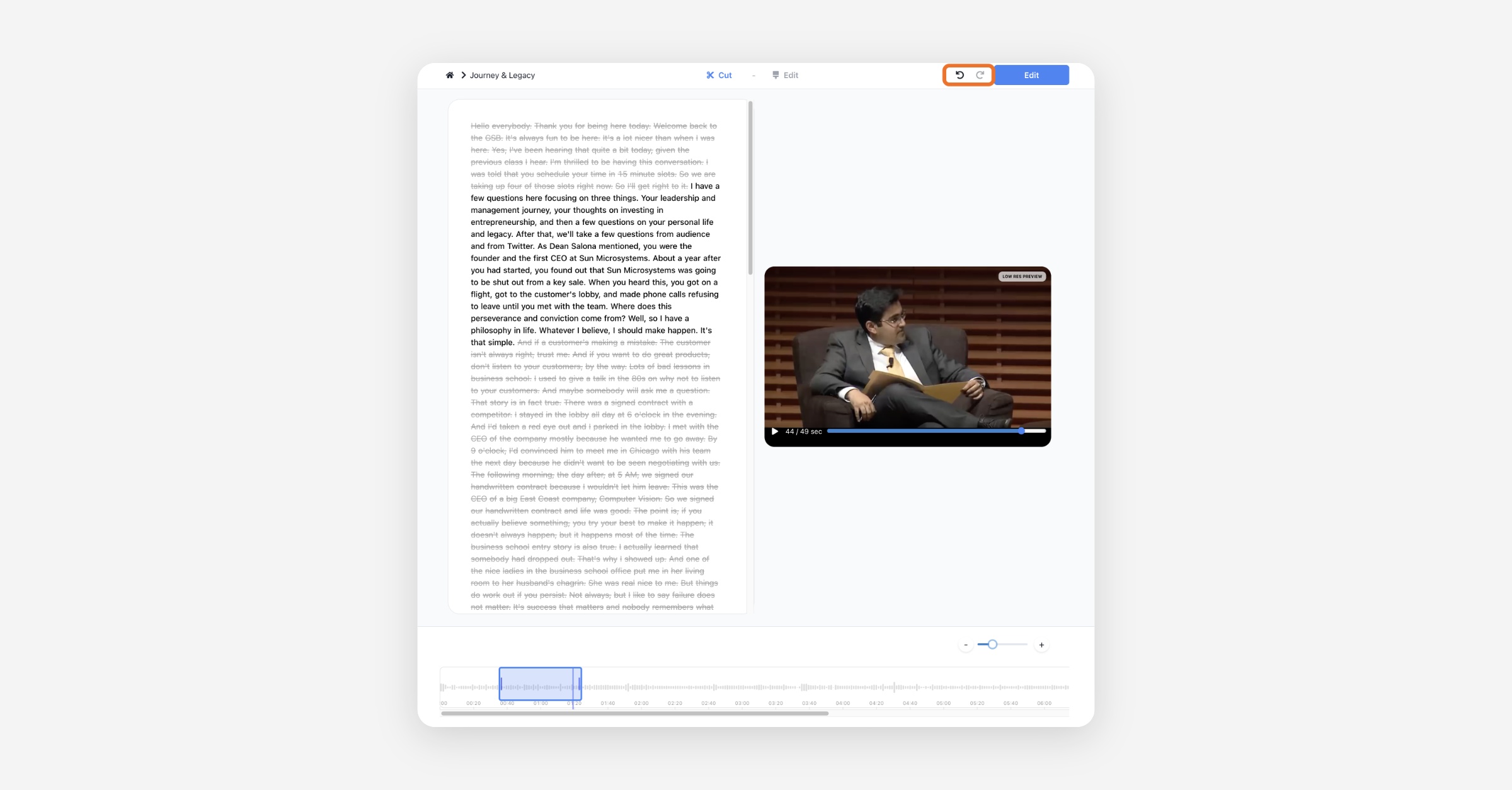
All changes you make on the cut page can be undone and redone.
Was this helpful?