
How to Submit Your Video
Start your first project by importing your original long video from YouTube, Vimeo, Kick, Twitch, or local files on the dashboard. And choose the appropriate language for your video.
Video URL: You can paste a YouTube, Vimeo, Kick, or Twitch VOD video URL
Local File: You can drag & drop your local file in the box below. Or you can simply click the box area to choose the file to upload
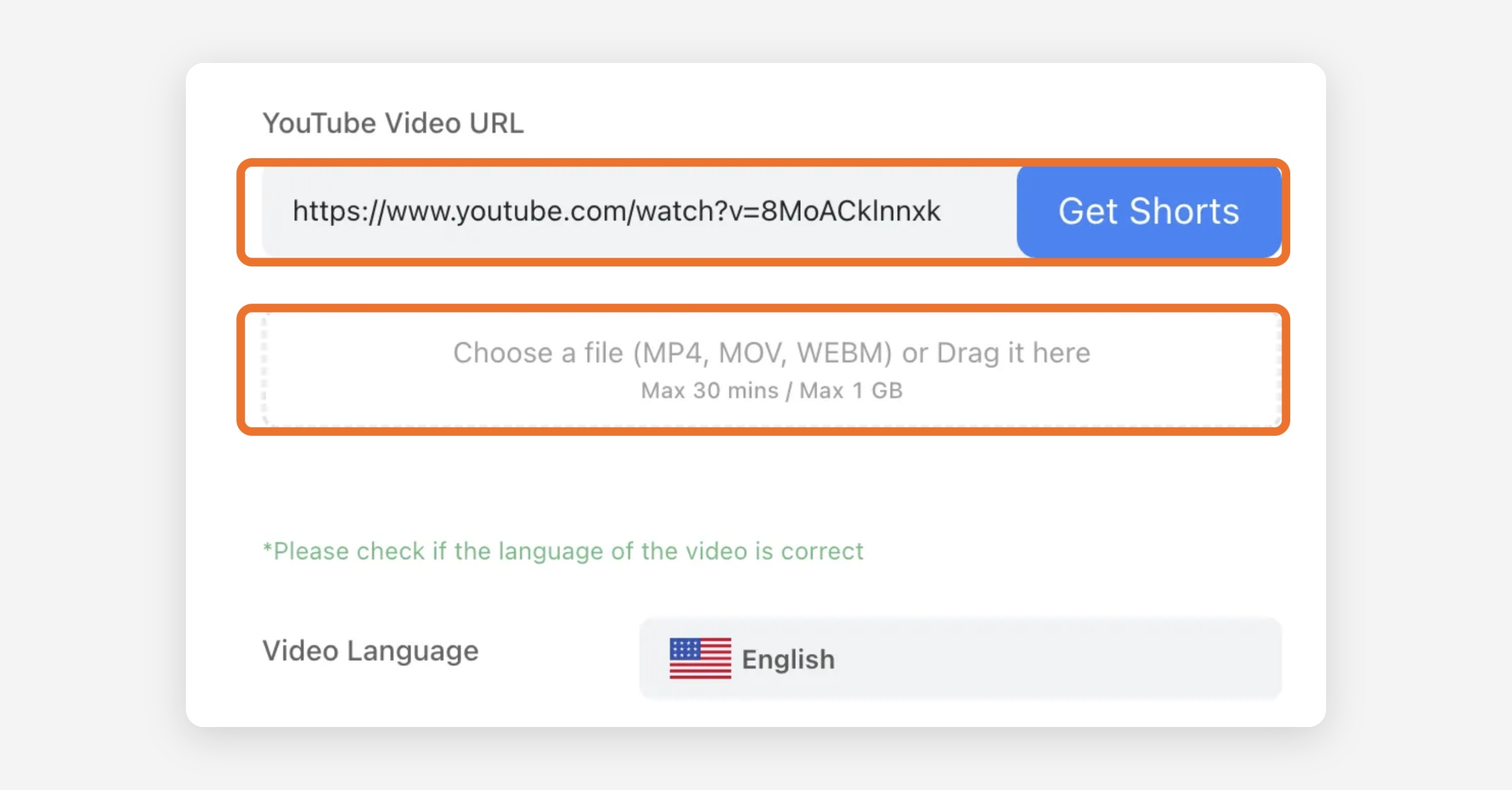
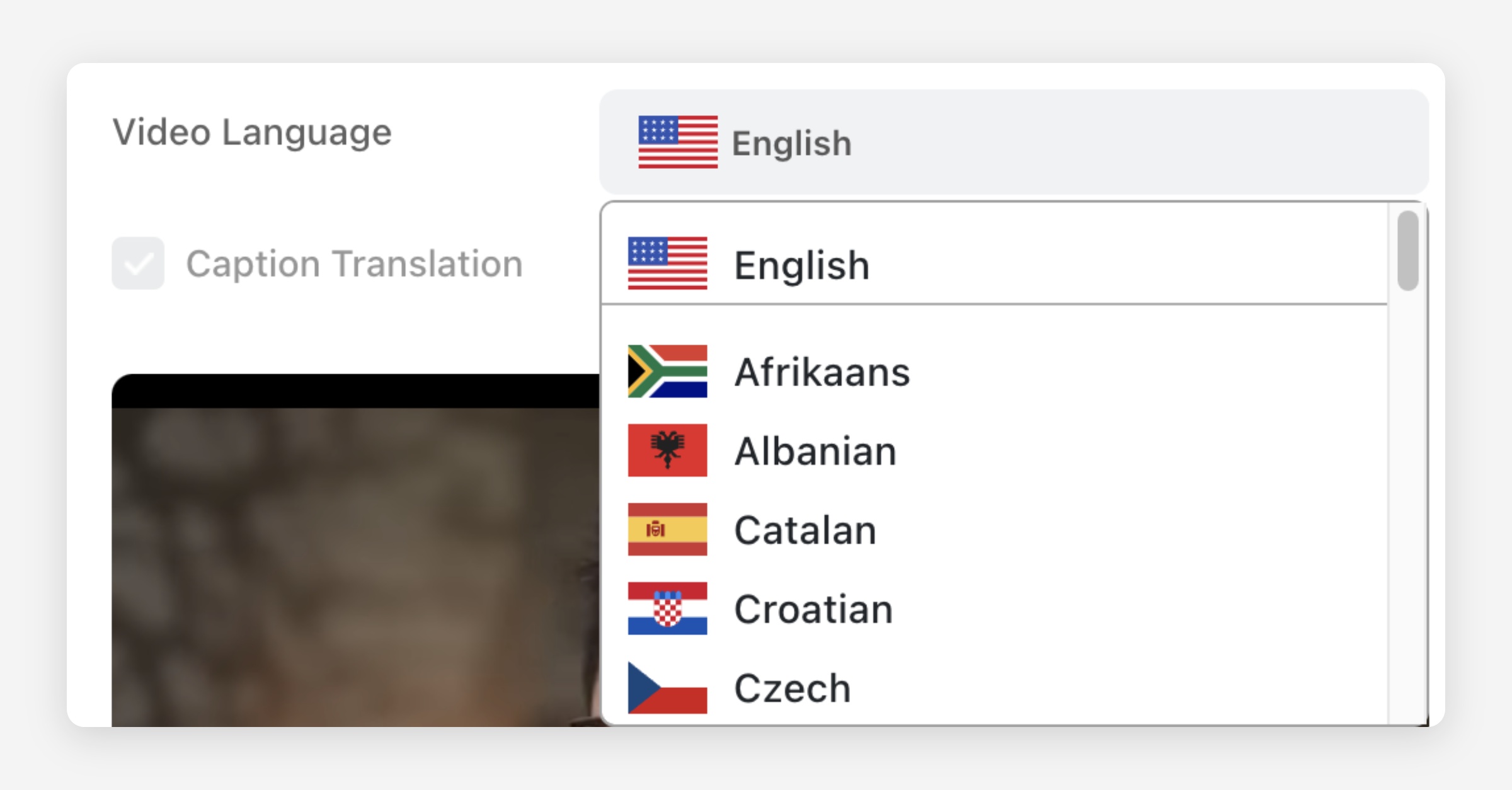
Video Languages Supported
Ssemble supports the following languages
English
Hindi
Afrikaans
Albanian
Catalan
Croatian
Czech
Danish
Dutch
Estonian
Faroese
Finnish
French
Galician
German
Greek
Hungarian
Icelandic
Italian
Indonesian
Latin
Latvian
Lithuanian
Luxembourgish
Macedonian
Maltese
Norwegian
Polish
Portuguese
Romanian
Russian
Serbian
Slovak
Slovenian
Spanish
Swedish
Ukrainian
Video Sources Supported
After uploading a YouTube URL or video file, you can select the appropriate language for your video from the Video Language option.
YouTube: long-form videos are supported (Shorts are not). Vimeo: public and unlisted videos are supported. Kick: VODs (past broadcasts) are supported. Twitch: VODs (past broadcasts and highlights) are supported. Local Files — Formats: mov, mp4, webm · Size: max 1GB · Length: max 30 minutes · Resolution: max 1080P
For full details on every source, see Supported Video Sources for AI Clipping.
Fixing the wrong video language
Ssemble pulls the video language from YouTube's own metadata for YouTube imports. That metadata is sometimes wrong.
Before you click Create, check the flag icon next to the video details. If it shows the wrong language, click it and pick the correct one from the list. Ssemble transcribes and captions the video in whatever language is selected at that point, so fixing it before you click Create is what matters, changing it afterward has no effect on a project that already exists.
If you already created a project with the wrong language, you can't relabel it after the fact. Delete the project (see How to Delete a Project below) and submit the video again with the correct language selected.
Video Types Supported
Ssemble Shorts Maker works only for TALKING videos.
Good Video Types
Video Podcasts Educational Videos Commentaries Videos Product Reviews Motivational Speeches
Bad Video Types
Video without face Videos with noise Gaming Music Videos Live Videos
The Output Video Quality Even if the original video is 4k or higher, the resolution/quality of the output clip that Ssemble extracts is set to 1080p. This is because 1080p is the maximum quality supported by TikTok, Instargam Reels, and YouTube Shorts.
Progress Status Explained When using our Ssemble Shorts Maker, you may encounter various progress status messages that indicate the current stage of your video processing. Below is a guide to help you understand what each message means and what you can expect during each stage.
Waiting in queue… This message means that your request has been submitted successfully, but the available servers are processing other tasks ahead of yours. Please wait while your video moves up the queue. It should be no longer than 5 mins.
Fetching video… The system is retrieving your video from YouTube or downloading the file you uploaded. This process usually takes a few minutes, depending on the video size.
Analyzing video… The AI is transcribing the audio from your video to identify key moments and insights. This stage involves converting spoken words into text, which helps in detecting interesting segments.
Finding interesting segments Our AI is analyzing the video content to locate the most engaging and attention-grabbing parts. This ensures that your short is dynamic and impactful.
Finalizing Data… The system is putting together the extracted clips and preparing the final output. This stage involves combining segments, adding captions and effects, and making final adjustments.
Task complete! Your video processing is finished, and your short form clips are ready! You can now preview or download the clips.
Failed Unfortunately, your video processing has encountered an error. Please check your video format, network connection, or try again later. The credit is automatically restored.
We hope this guide helps you understand the different progress messages and what they mean during your video creation process. If you have any questions or encounter issues, feel free to reach out to our support team.
How to Delete a Project
On the dashboard screen, you can see a list of your projects. You can delete a project by clicking the … button of the project you want to delete and then hitting the Delete button.
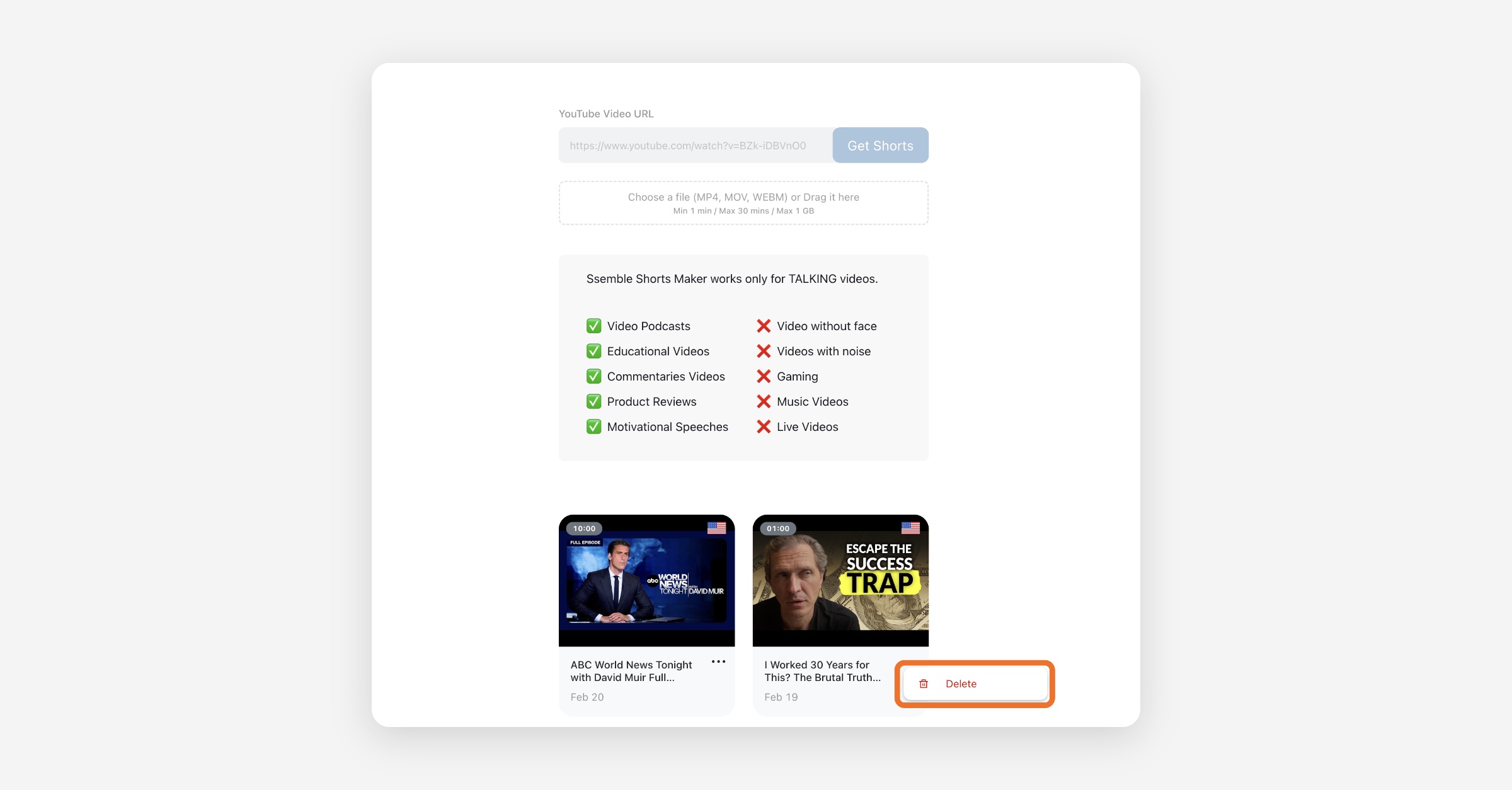
Ssemble deletes clips at the project level only. There's no option to delete a single clip out of a project, deleting a project removes every clip generated from it. If you only want one bad clip gone, for example one made with the wrong language, delete the whole project and, if needed, resubmit the video to create a new one.
If the Delete button doesn't respond or the project stays stuck after you delete it, contact support and they can remove the project for you.
What Happens If I Delete a Project That Is Currently Being Generated?
Even if you delete a project that is already being generated, the credits will not be restored. However, in the case of project generation failures due to service errors, the credits will be automatically restored as expected.
Was this helpful?