
How Many Clips can I get?
Typically, the number of clips you can get depends on the selected timeframe of the input video:
0-3 minutes: 1-3 clips
3-10 minutes: 7-12 clips
However, if the original video does not contain many interesting or engaging moments, or if there are long pauses between conversations, the AI may generate fewer clips.
Choose how many clips you want
You can also set how many clips you want from a video. Paste your link on the dashboard, open Advanced Options, and use the Number of clips slider, right under Layout.
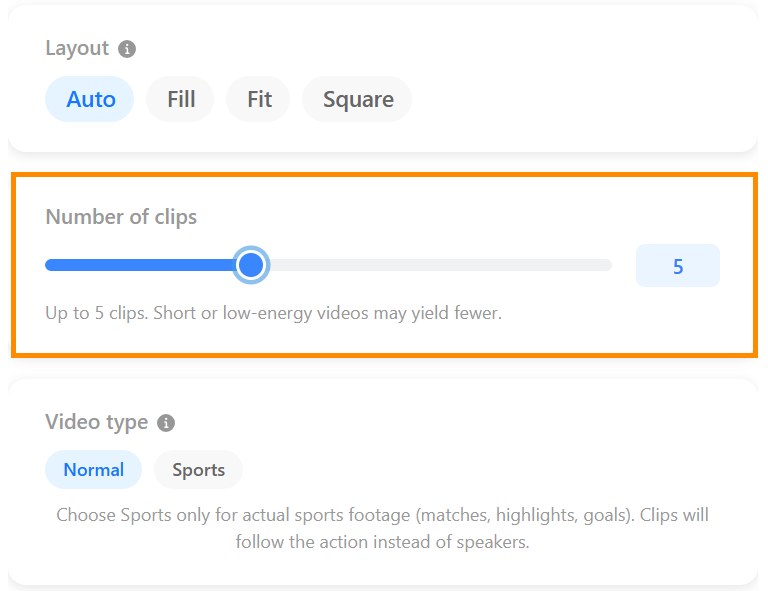
Auto (default, far right): we pick the best clips for you, up to 12. How many you get depends on the video's content and length.
1 to 11: you get at most that many clips, and always the highest-scoring ones.
The number is a limit, not a target. If a video only has 2 strong moments and you choose 5, you get 2. We never add weaker clips just to reach your number. The results page shows the number you chose, for example "Up to 5", or "2 of up to 5" when the video gave fewer.
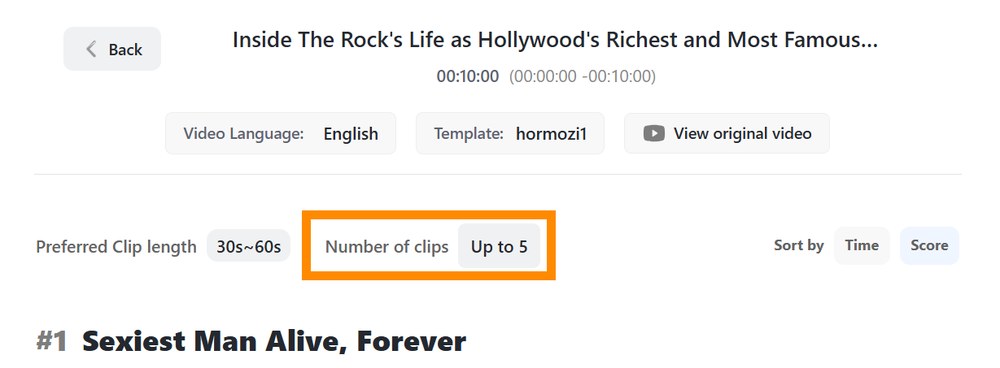
Your choice is remembered for your next video, and Reset Preference sets it back to Auto.
Good to know
Clip Entire Video: long videos are split into 20-minute parts, and the limit applies to each part. For example, choosing 3 on a 60-minute video can give up to 9 clips. The slider shows the total for your video.
Credits: the number of clips doesn't change the credit cost.
Channel automation: the same setting is in your automation's Clip Settings. See Choosing the Right Clip Settings.
API: use the optional
maxShortsparameter (1 to 12) onPOST /shorts/create. See the API docs.
Was this helpful?