
How to Turn Off Captions
Render your clips without burned-in captions — for new projects, for a clip you already made, or for a Channel Automation.
By default, Ssemble burns captions into every clip it makes. If you'd rather have clean footage, you can turn captions off — for a new project, for a clip you've already generated, or for every clip a Channel Automation posts.
This is useful when:
Your source video already has captions burned into it, and a second set on top would overlap.
You want to add your own captions later in another editor.
Your clips are for a placement where captions aren't wanted.
Turn Off Captions for a New Project
On the dashboard, add your YouTube link or video file as usual. Just above the Template picker you'll find the Captions toggle, switched on by default.
Switch it off, and your clips will render with no captions.
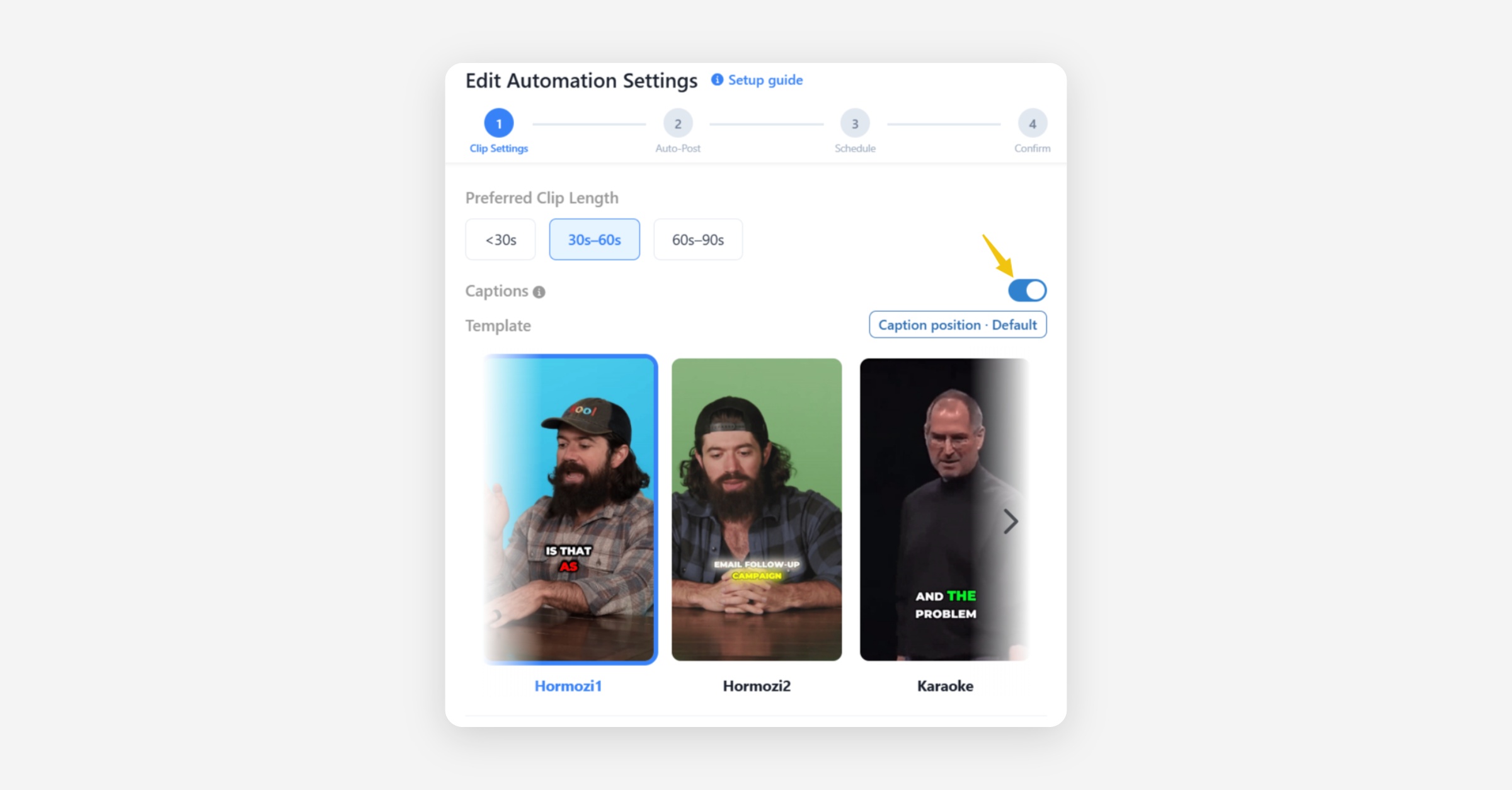
When captions are off, the Template picker and the Caption position control disappear. That's expected — a template is a caption style, so there's nothing for those controls to change. The Caption Translation option is hidden for the same reason.
Everything else works exactly as before. Hook Title, Call To Action, Meme Hook, Game Video, image and text overlays, and background music are all unaffected — if you have those switched on, they'll still appear on your clips.
Your choice is remembered, so the next project you create starts with the same setting.
Turn Off Captions on a Clip You Already Made
You don't have to decide up front. To change an existing clip:
Open the clip in the editor.
Go to the Captions tab and click the settings icon next to it.
Switch Captions off.
Click Save & Recompile.
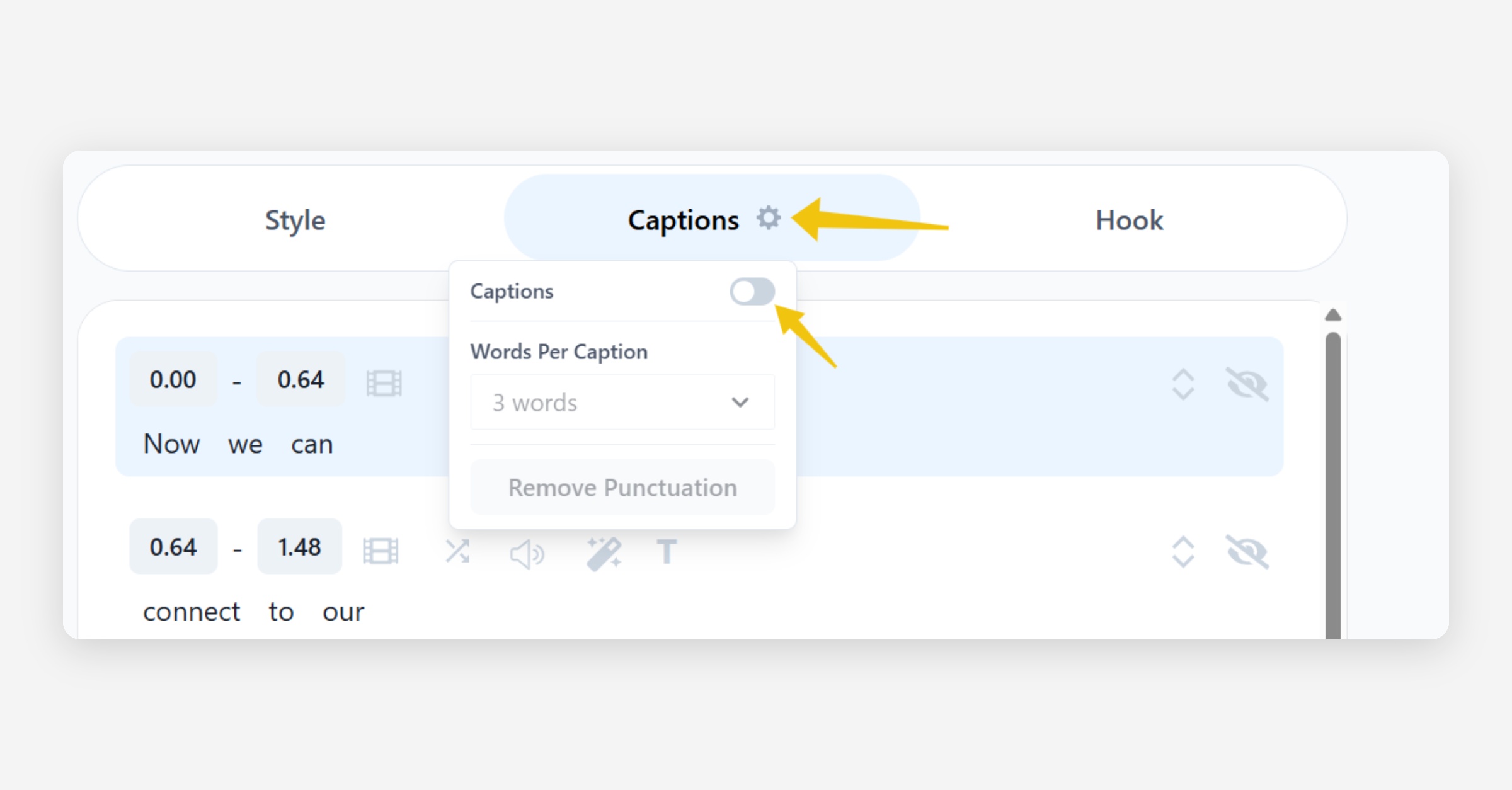
The clip re-renders without captions. The same switch turns them back on, so you can compare both versions and keep the one you prefer.
Turn Off Captions for a Channel Automation
Channel Automations have the same setting, so every clip the automation posts follows it.
Open your automation and click Edit.
On the clip settings step, switch Captions off.
Save.
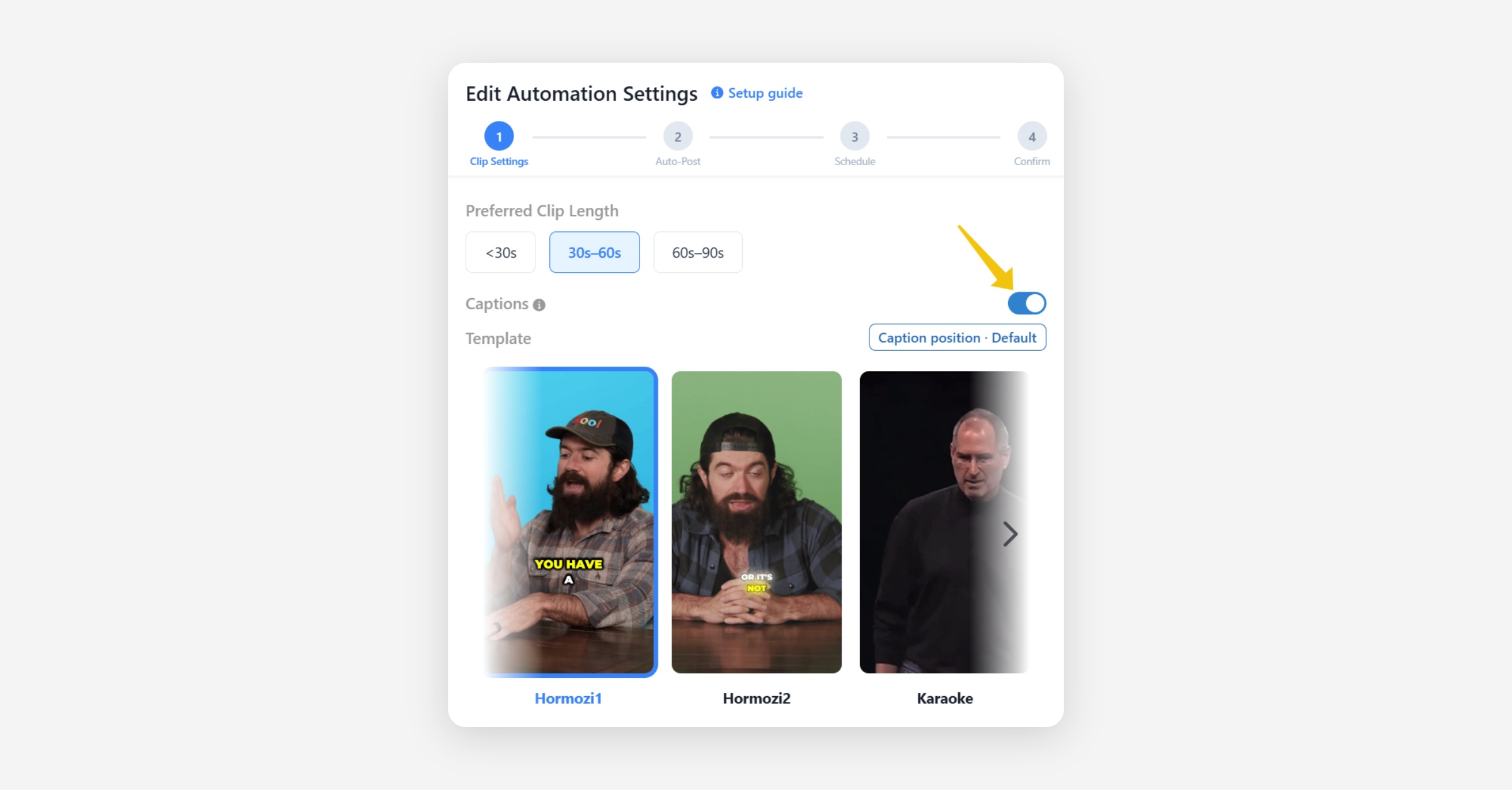
As in a new project, the Template picker, Caption position and Words Per Caption controls are hidden while captions are off. The setting applies to clips created from that point on — clips the automation has already posted aren't changed.
Frequently Asked Questions
Does turning captions off use fewer credits?
No. Ssemble still transcribes your video, because the transcript is how the AI finds the most engaging moments to clip. Turning captions off changes only what gets drawn on the finished video, so a project costs the same either way.
Can I turn captions back on later?
Yes. Open the clip in the editor, switch Captions back on, and click Save & Recompile.
Will my hook title and CTA still show?
Yes. Captions and text overlays are separate — turning captions off leaves your Hook Title, CTA and any image or text overlays exactly as they were.
Can I still download the captions as a file?
Yes. The transcript is still generated, so Download SRT and Copy Subtitles in the editor work as normal, even when captions aren't burned into the video.
Was this helpful?