
How to Download or Copy Entire Captions
How to Download Captions in SRT format
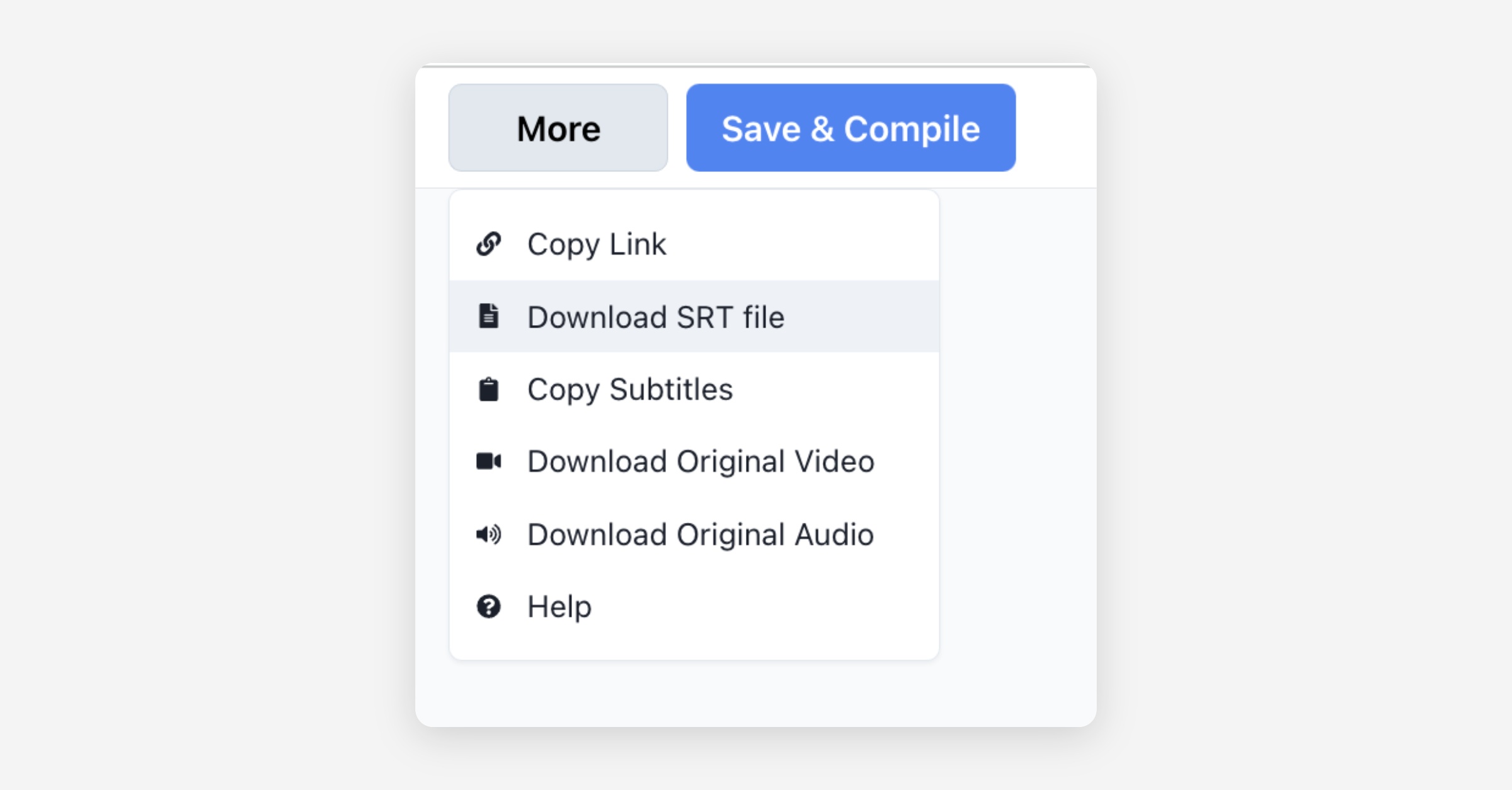
If you click the More button in the top right corner of the editor, you'll find the Download SRT button. Click it to download the subtitles as an SRT file. You can upload the SRT file to your YouTube video and edit it in the editor to improve your video's SEO.
How to Copy Captions to Clipboard
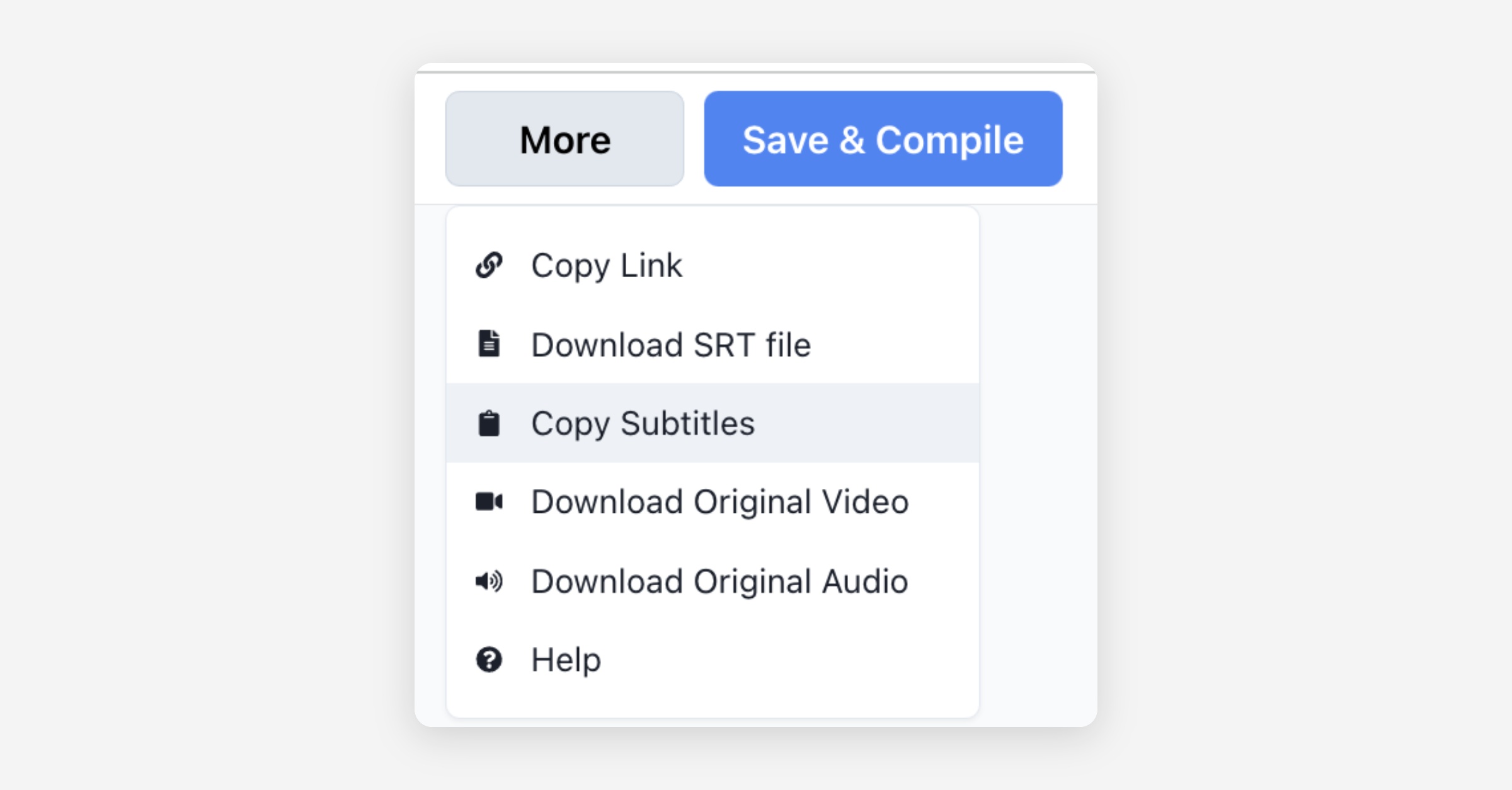
If you click the More button in the top right corner of the editor, you'll find the Copy Subtitles button. Click it to copy the entire subtitle content of the clip to the clipboard.
Was this helpful?