

The Custom hook title style lets you design your own hook title: pick the shape, font, size, colors, outline, corners and letter case, and see a live preview before you create your clips.
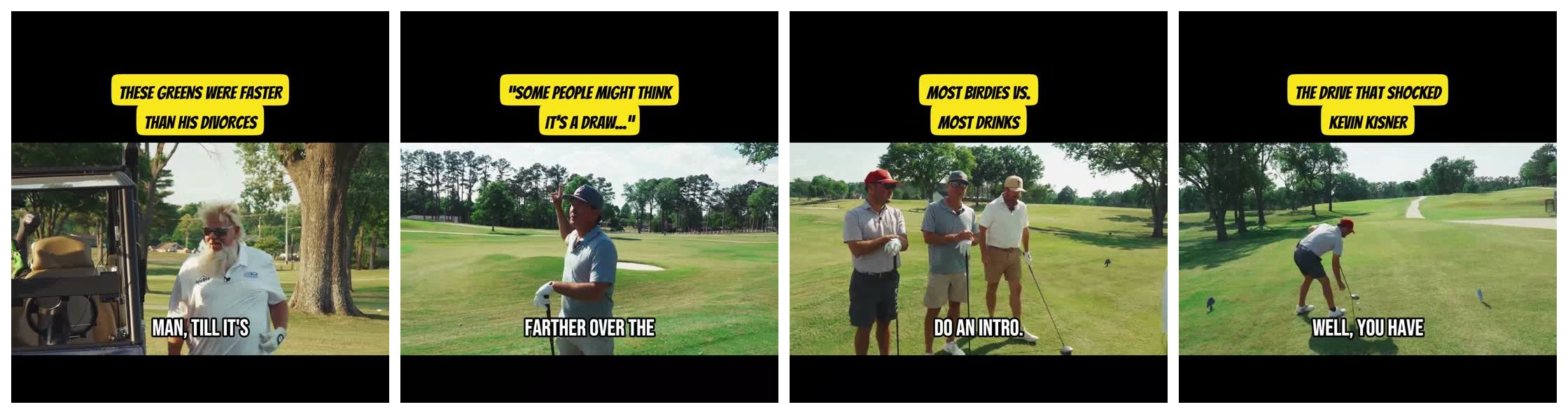
Watch the 1-minute demo: Custom hook title style demo
Use a custom style for a new video
Paste your link on the dashboard and open Advanced Options.
Turn on Hook Title.
Under Style, pick Custom. The Your hook title style panel opens below the styles.
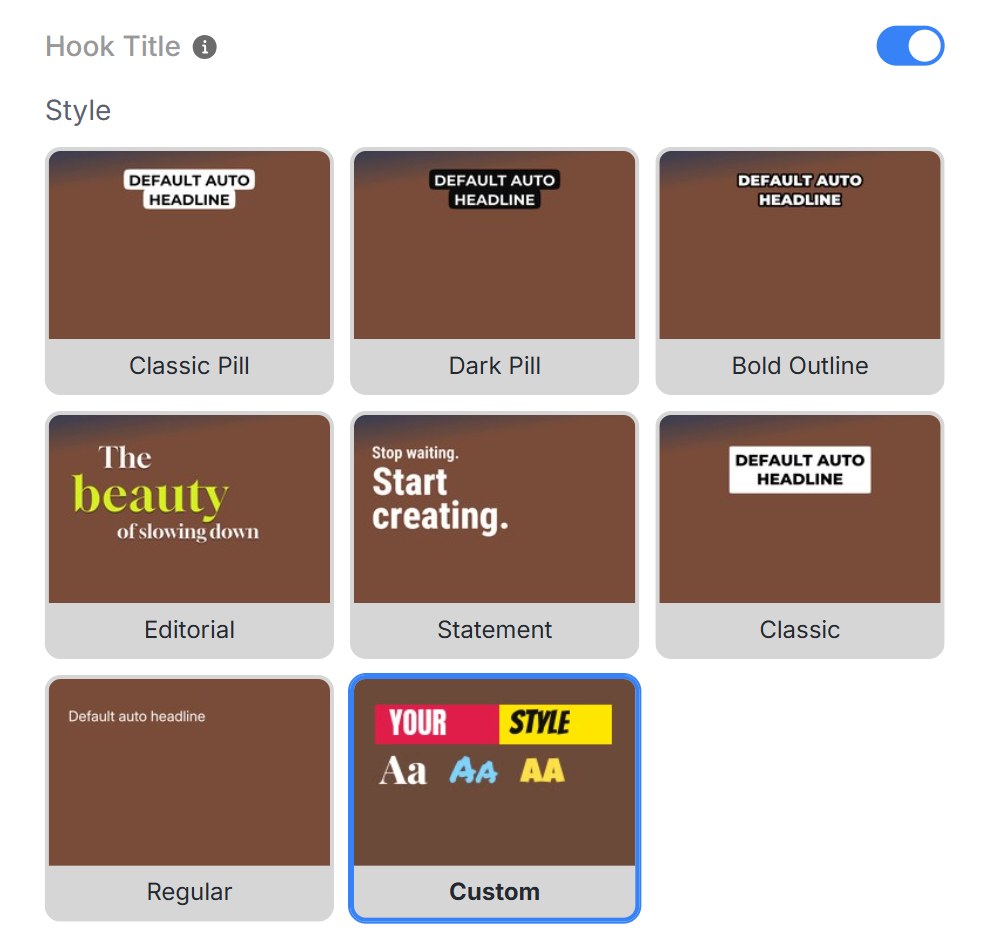
Your design is saved as your custom style, so it's ready the next time you pick Custom.
Design your hook title
The preview on the left updates as you change each option.
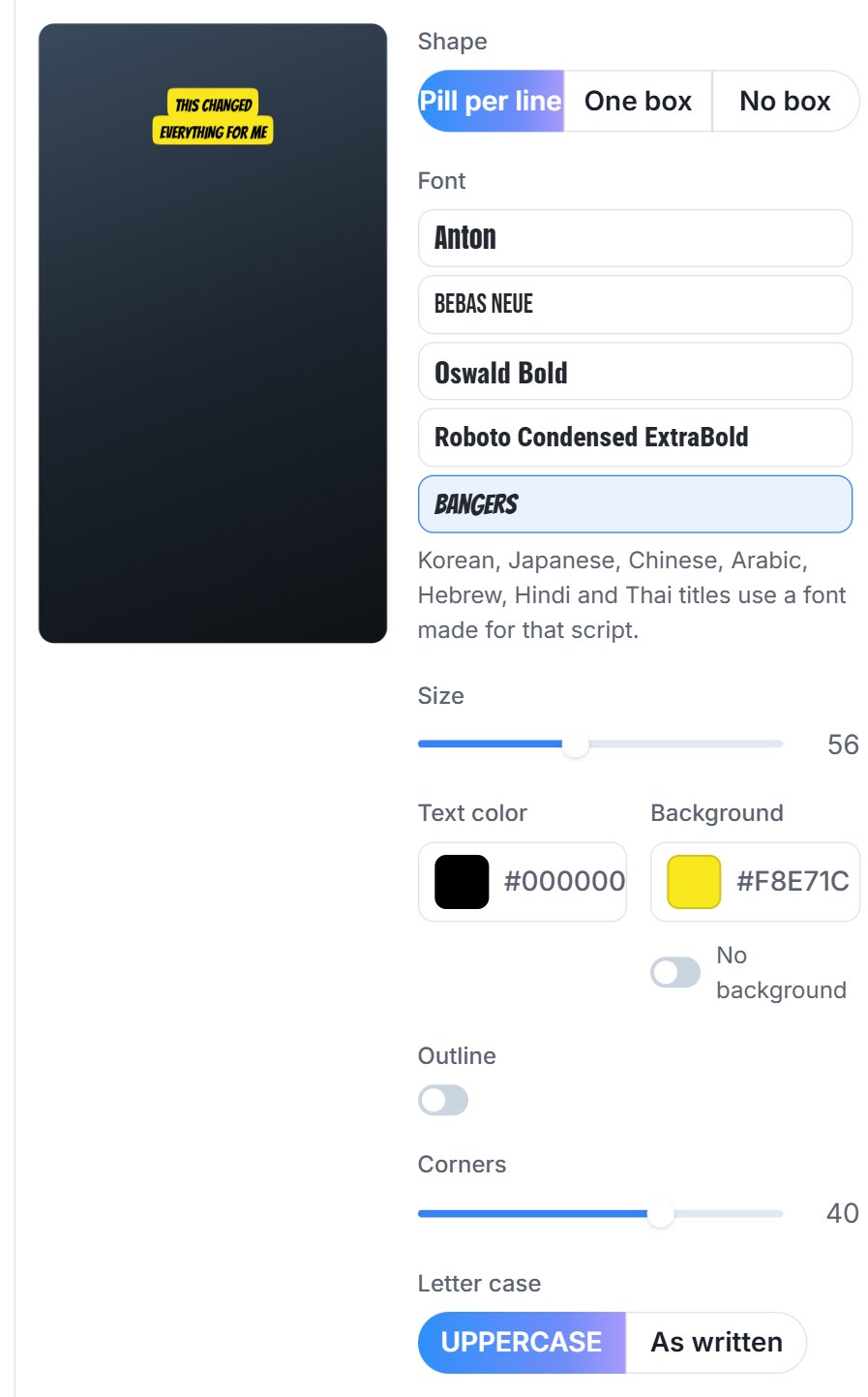
Option | What it does |
|---|---|
Shape | Pill per line puts a rounded box behind each line. One box puts one box around the whole title. No box shows the text only. |
Font | Choose from 24 fonts. Each name is shown in its own font. |
Size | Makes the title bigger or smaller. Every font is scaled to look the same size, so you can switch fonts without resizing. |
Text color | The color of the letters. |
Background | The color of the pill or box. For Pill per line you can also turn on No background for text only. |
Outline | An outline around the letters, with its own color and thickness (Pill per line only). |
Corners | How rounded the pill or box is (not shown for No box). |
Letter case | UPPERCASE, or As written to keep the title's own capitals. |
Three shapes
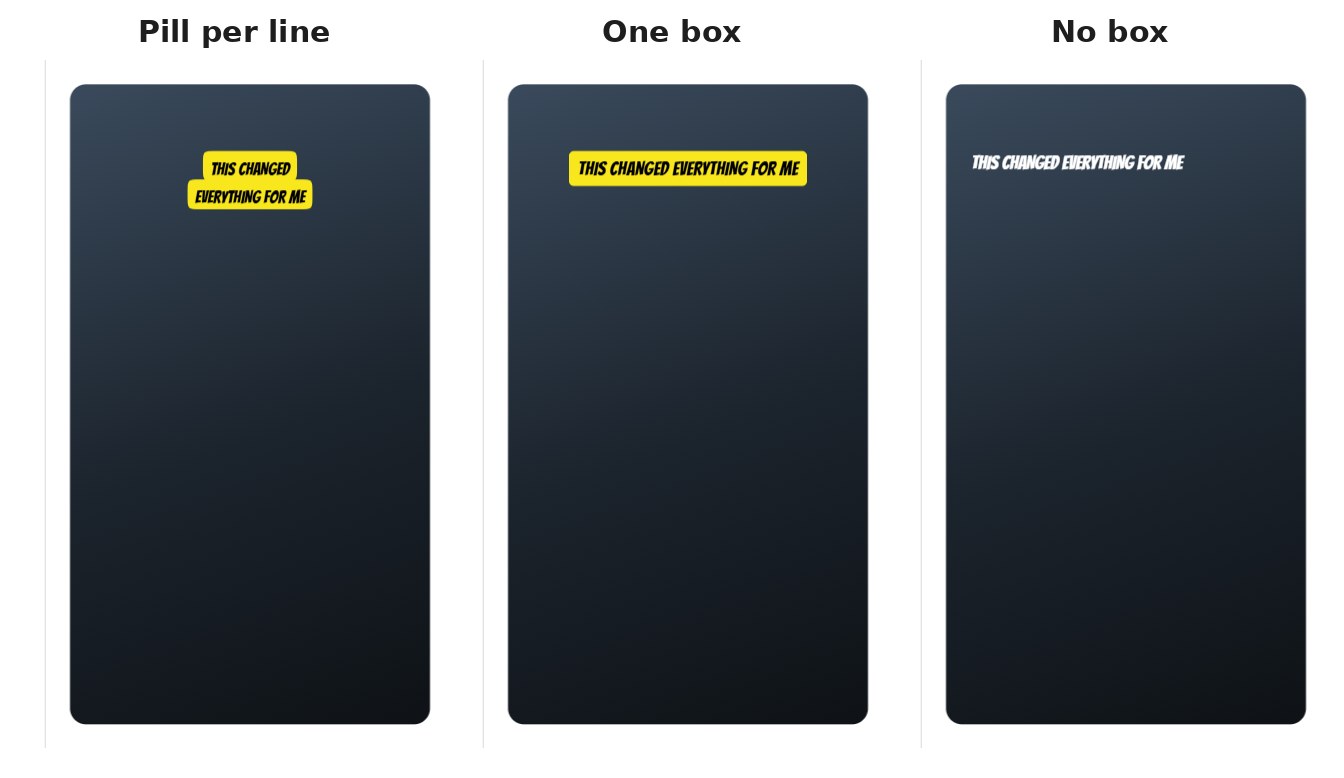
When you switch shape, the text color changes to black or white if it would be hard to read on the new background. You can always change it back.
24 fonts
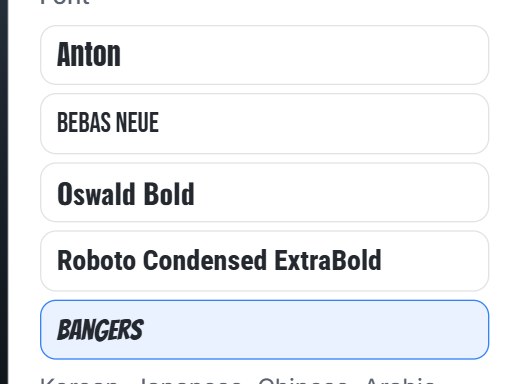
Scroll the list to see them all, from clean sans-serif fonts like Montserrat and Inter to bold display fonts like Bangers and Archivo Black.
Restyle a clip you already made
Open the clip in the editor.
Go to
Edit → Hookand pick Custom under Hook Title.Change any option. The preview on the right updates right away.
Click Save & Compile.
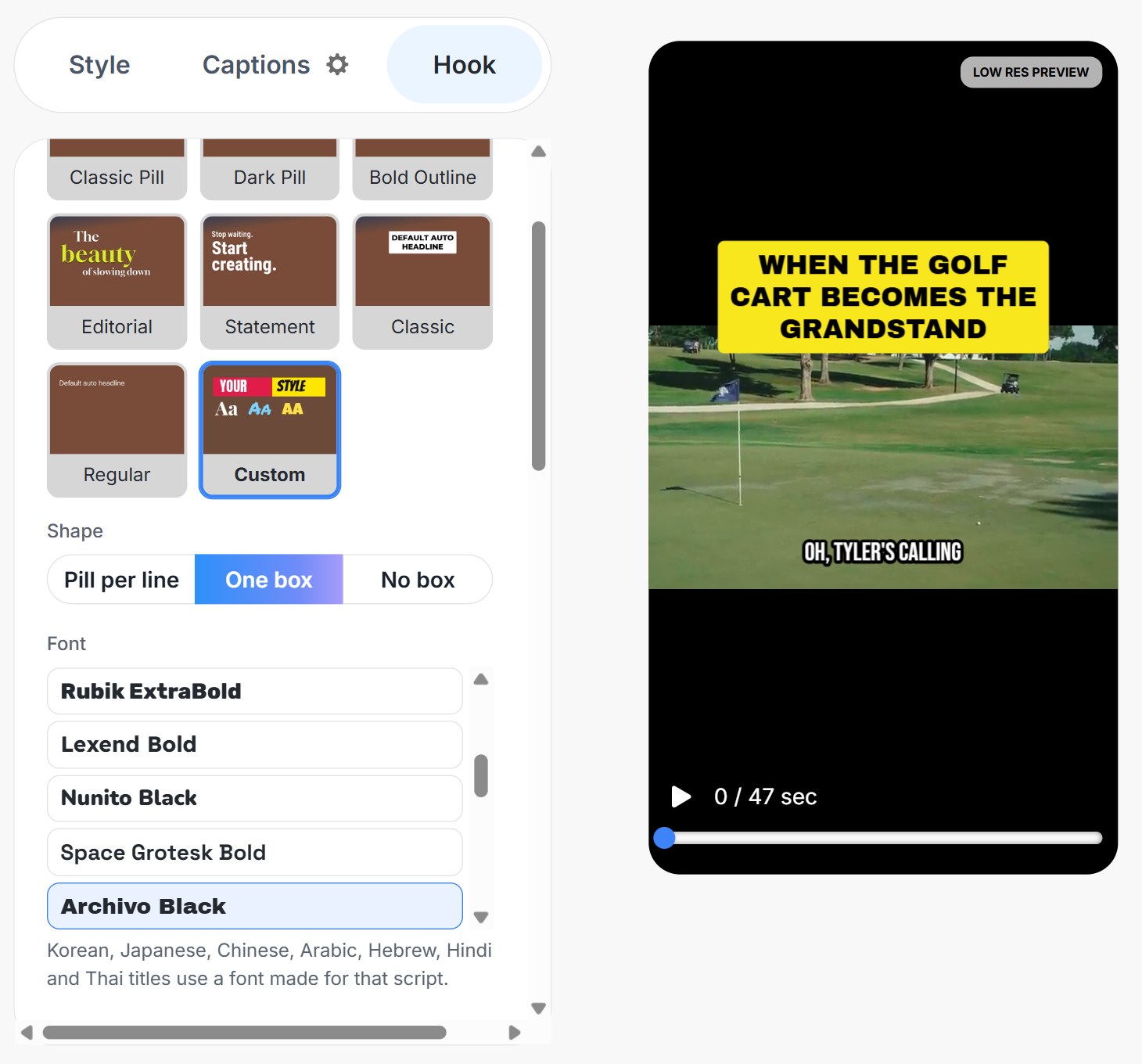
The new video matches the preview:

You can restyle a clip as often as you like. Each clip keeps its own style, so changing one clip doesn't change the others.
Use it in a channel automation
Open your automation → Edit Settings → Clip Settings → Hook Title, and pick Custom. The same design panel appears. Every new clip the automation creates uses that style. Clips it has already made aren't changed.
Use it with the API
Set hookTitlePresetId to custom and describe your design in hookTitleStyle. See the Create Short API reference for every field and the list of fonts.
Good to know
What you see is what you get: the preview in Get Shorts and in the editor matches the final video.
Other languages: titles in Korean, Japanese, Chinese, Arabic, Hebrew, Hindi and Thai keep your shape and colors, and use a font made for that script.
All-caps fonts: some fonts, like Bangers and Bebas Neue, only have capital letters, so As written looks the same as UPPERCASE with them.
Credits: the custom style is free. It doesn't change the credit cost.