

Two-step verification protects your account if someone learns your password. When you sign in with your email and password on a device we haven't seen before, we email you a 6-digit code, and you need that code to finish signing in.
It's off by default. You can turn it on in Account Settings at any time.
Watch the 1-minute demo: Two-step verification demo
Turn on two-step verification
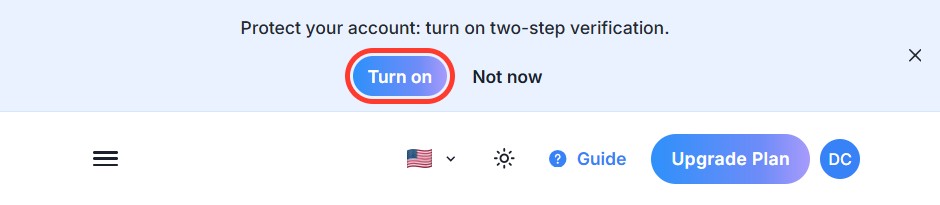
If you sign in with an email and password, you'll see this banner at the top of the app. Click Turn on to go straight to the setting.
You can also turn it on yourself:
- Click your profile picture and open Account Settings.
- Find Two-step verification and click Turn on.

- We email a 6-digit code to your account's email address. Enter it and click Confirm.
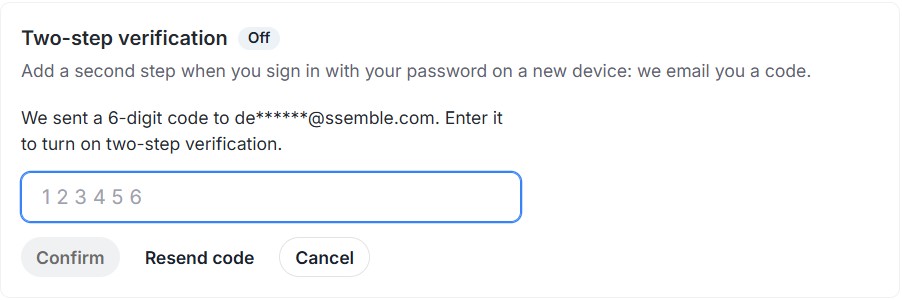
Two-step verification is now On. We also send you an email to confirm the change.

The browser you used to turn it on is remembered, so you won't be asked for a code there.
Not ready yet? Click Not now on the banner to hide it for 30 days.
Sign in with a code
When you sign in with your email and password on a new device or browser:
- Enter your email and password as usual.
- We email you a 6-digit sign-in code. The email tells you which device is signing in.
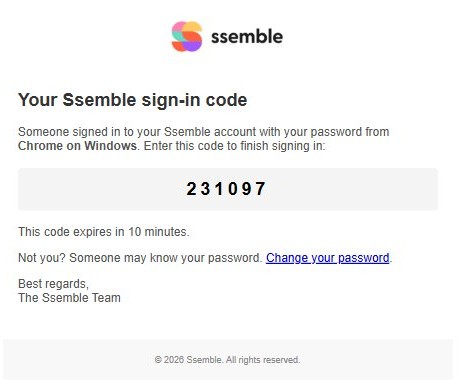
- Enter the code and click Verify and sign in.
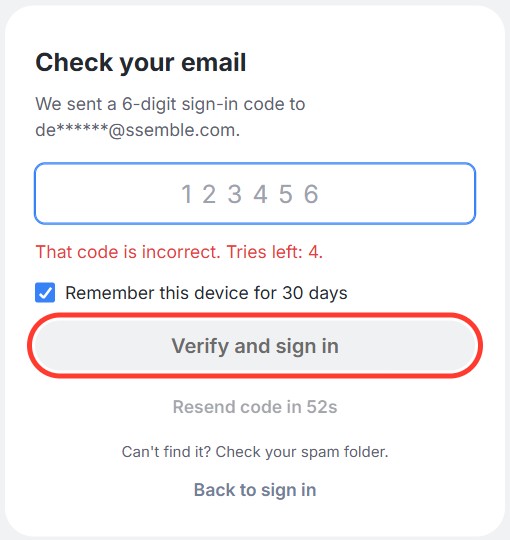
Leave Remember this device for 30 days ticked if it's your own computer or phone, and you won't be asked for a code on it again for 30 days. Untick it on a shared or public computer.
| Good to know | |
|---|---|
| Code expires | Each code works for 10 minutes. |
| Wrong code | You can try 5 times. After that, request a new code. |
| New code | Click Resend code (available after 60 seconds). The previous code stops working. |
Didn't get the code?
- Check your spam or promotions folder for an email from [email protected].
- Wait a minute and click Resend code.
- Make sure you're signing in with the right email address.
- For your security, we send a limited number of codes per hour. If you see Too many codes requested, wait a while and try again.
Still stuck? Contact us through the chat in the app.
Turn off two-step verification
- Open Account Settings and click Turn off next to Two-step verification.
- Enter your current password and click Turn off.
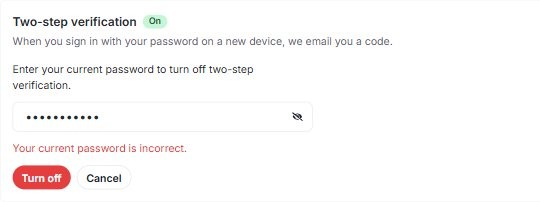
We send you an email when it's turned off. If you didn't do it, change your password right away.
Signing in with Google or Apple
Two-step verification in Ssemble is for accounts that sign in with an email and password. If you sign in with Google or Apple, they already protect your sign-in, and you can turn on two-step verification in your Google or Apple account instead.

Good to know
- Changing your password signs out your other devices and forgets remembered devices, so each one asks for a code the next time.
- Leaked passwords: if we learn that your Ssemble password appeared in a list of stolen passwords, we may turn on two-step verification for you and email you. We recommend changing your password and scanning your devices for malware.
- API keys and the MCP server aren't affected. They don't use the sign-in screen.
- Free: two-step verification is available on every plan.