
AI Templates Automation
Introduction to AI Video Automation
What is Automation?
Automation in Ssemble allows you to set up a system that continuously generates and posts AI videos to your social media accounts without manual intervention. Once configured, the system creates videos based on your template settings and publishes them according to your schedule.
🚀 Benefits of Automation
Consistent Content → Maintain a regular posting schedule without daily effort. You can customize as per needs while creating automation.
Time Efficiency → Set up once, run autopliot
Scale Content Production → Generate dozens of videos automatically
Optimal Posting Times → System posts when your audience is most active
Content Variety → AI ensures each video is unique
⚙️ How Automation Works
Template Selection → Choose your preferred AI template
Configuration → Set parameters for video generation
Content Generation → AI creates unique videos based on your settings
Automated Publishing → Videos post to your social accounts on schedule.
💡 Use Cases
E-commerce Stores → Daily product showcases
Content Creators → Regular content without burnout
Brands → Consistent brand presence across platforms
Influencers → Maintain engagement during busy periods
⚡ Creating Your First Automation
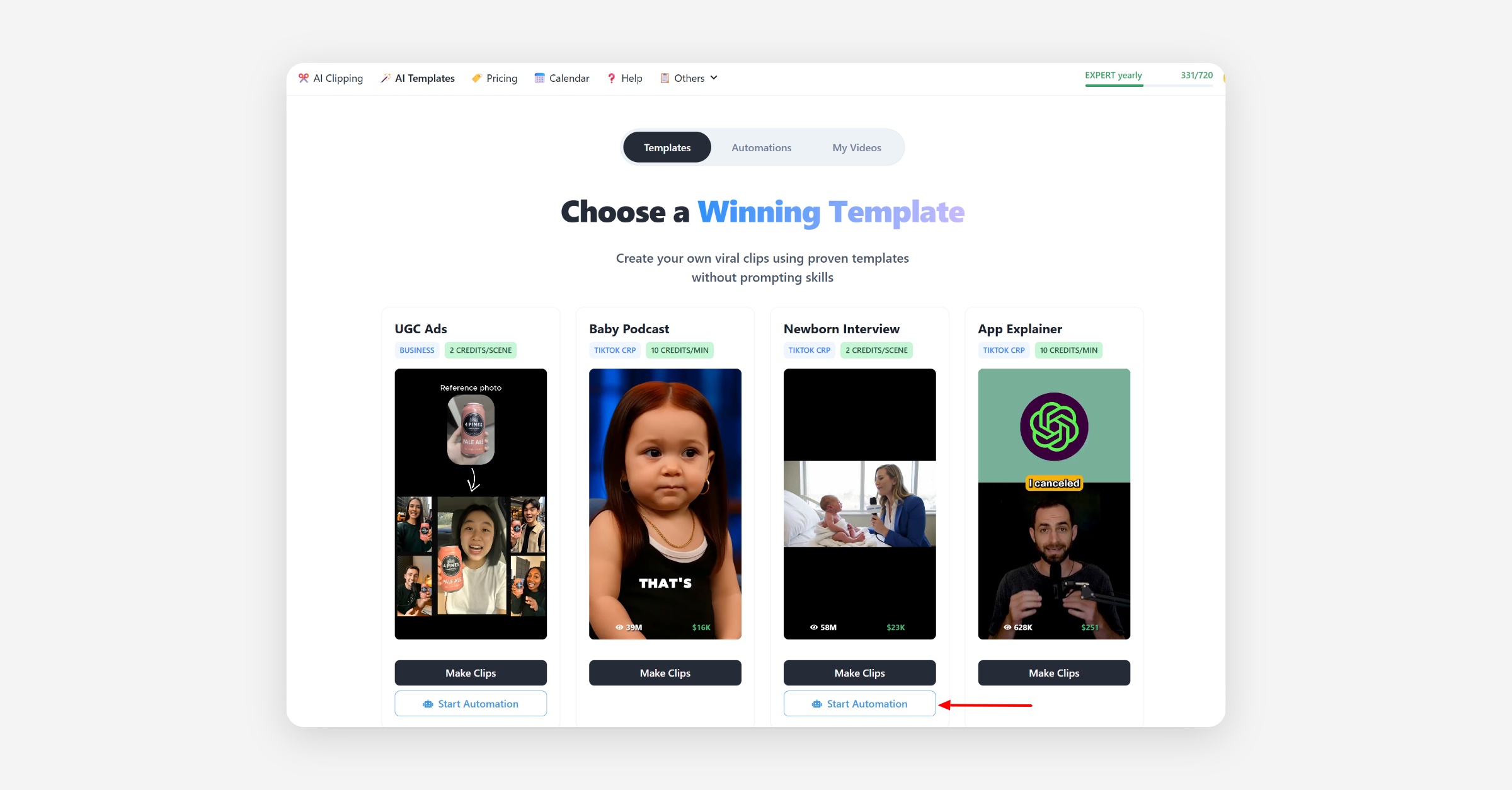
Step 1: Select Your Template
Navigate to AI Templates section
Find your desired template
Click Start Automation
The automation wizard will open
Step 2: Configure Your Automation
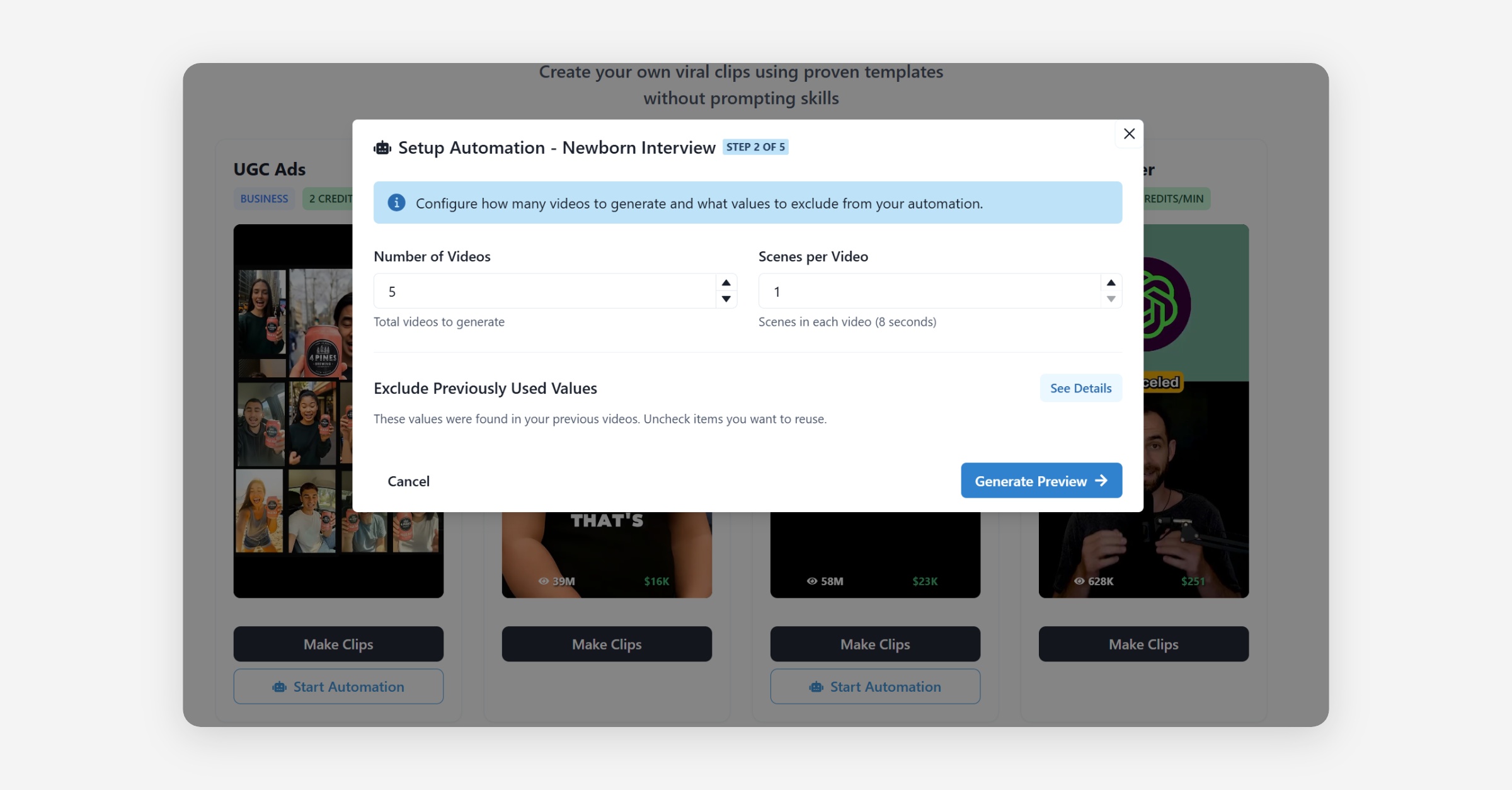
Basic Settings
Number of Videos → Set how many videos to generate
Scenes per Video → For most templates, choose 1–8 scenes.
Template-Specific Settings
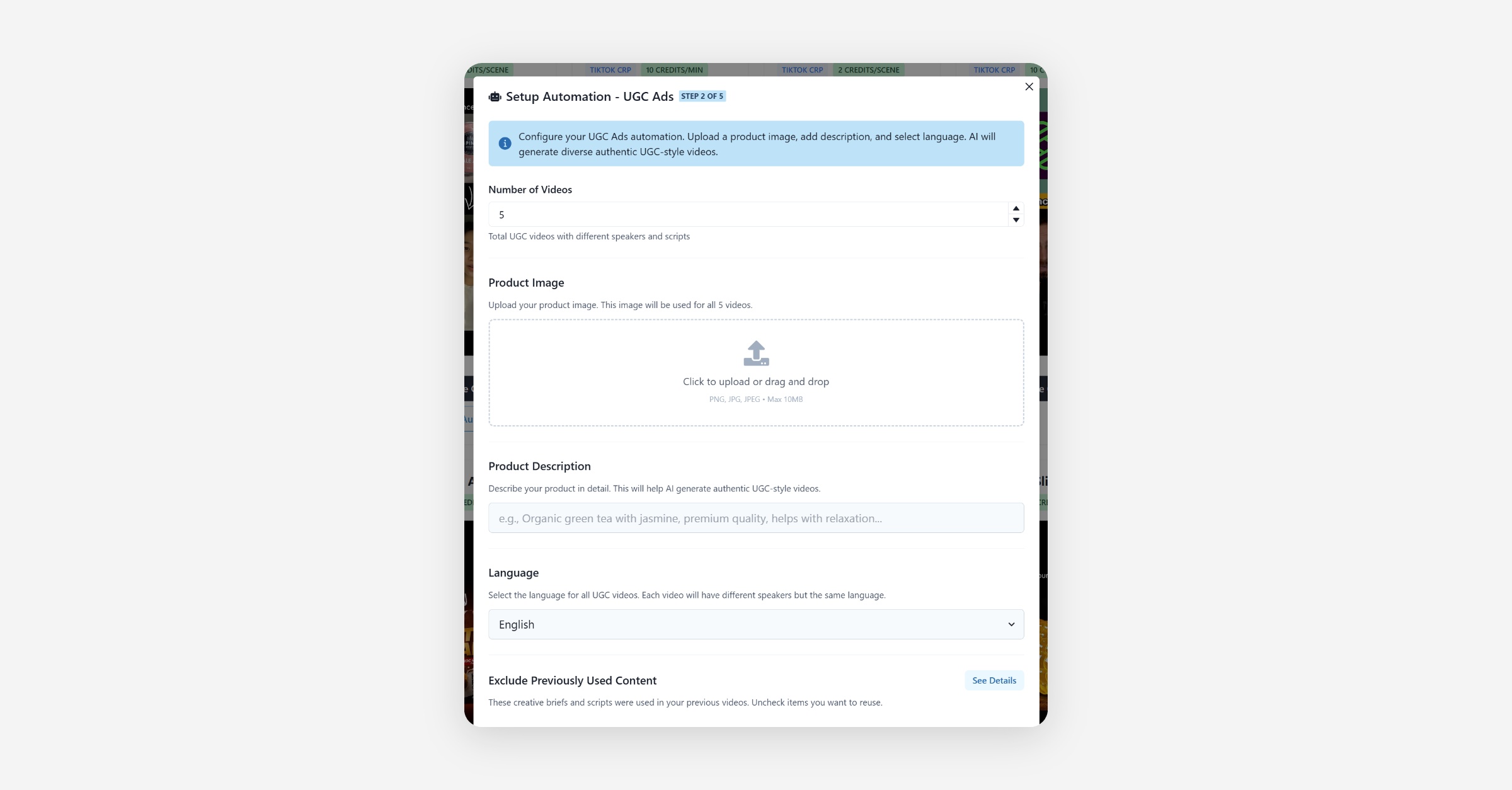
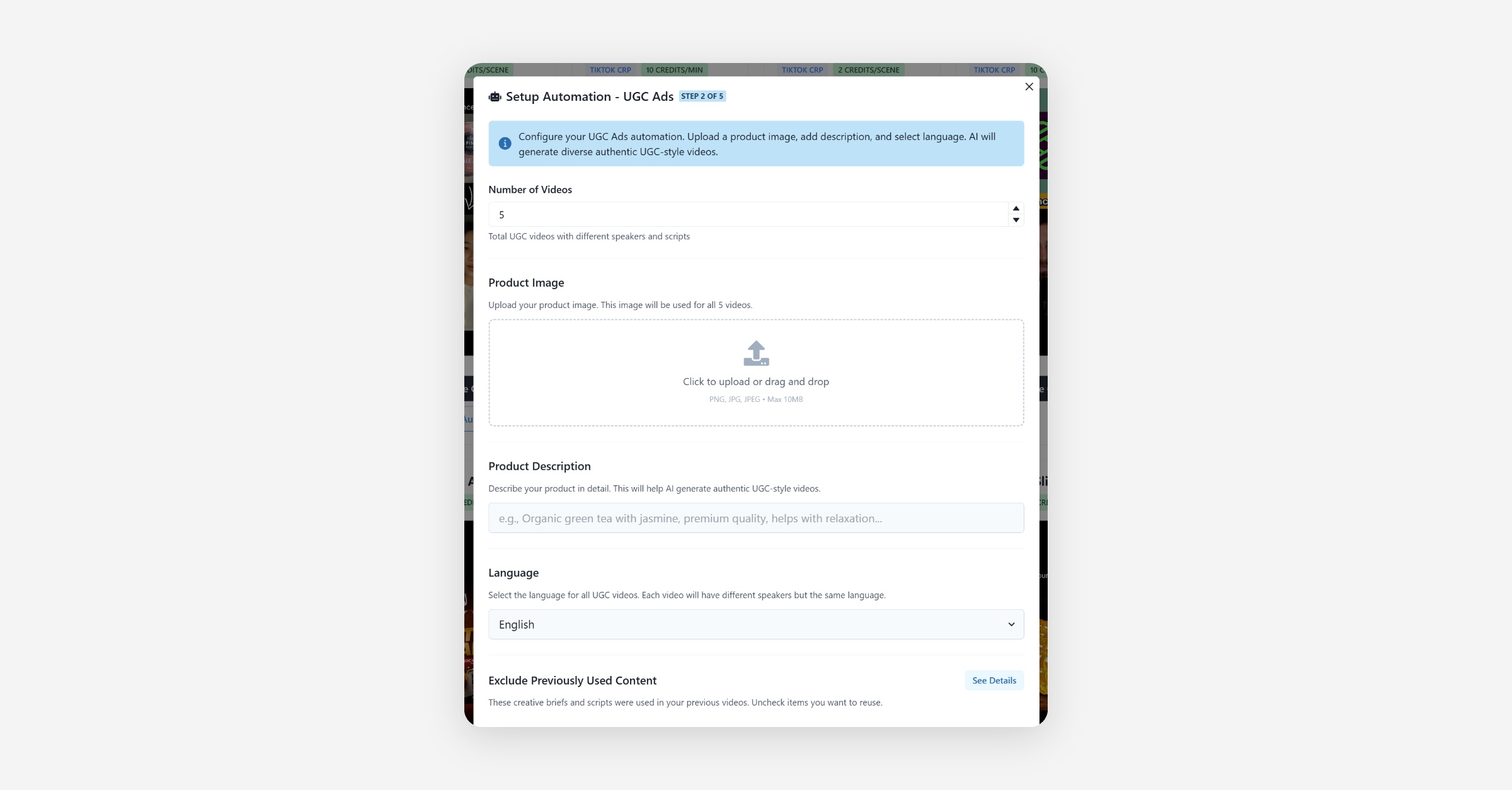
✅ For UGC Ads:
Upload Product Images → Add product photo
Product Description → Enter your product details
Language → Select from available languages
✅ For Photo to TV Ads:
Upload Product Images → Add product photo
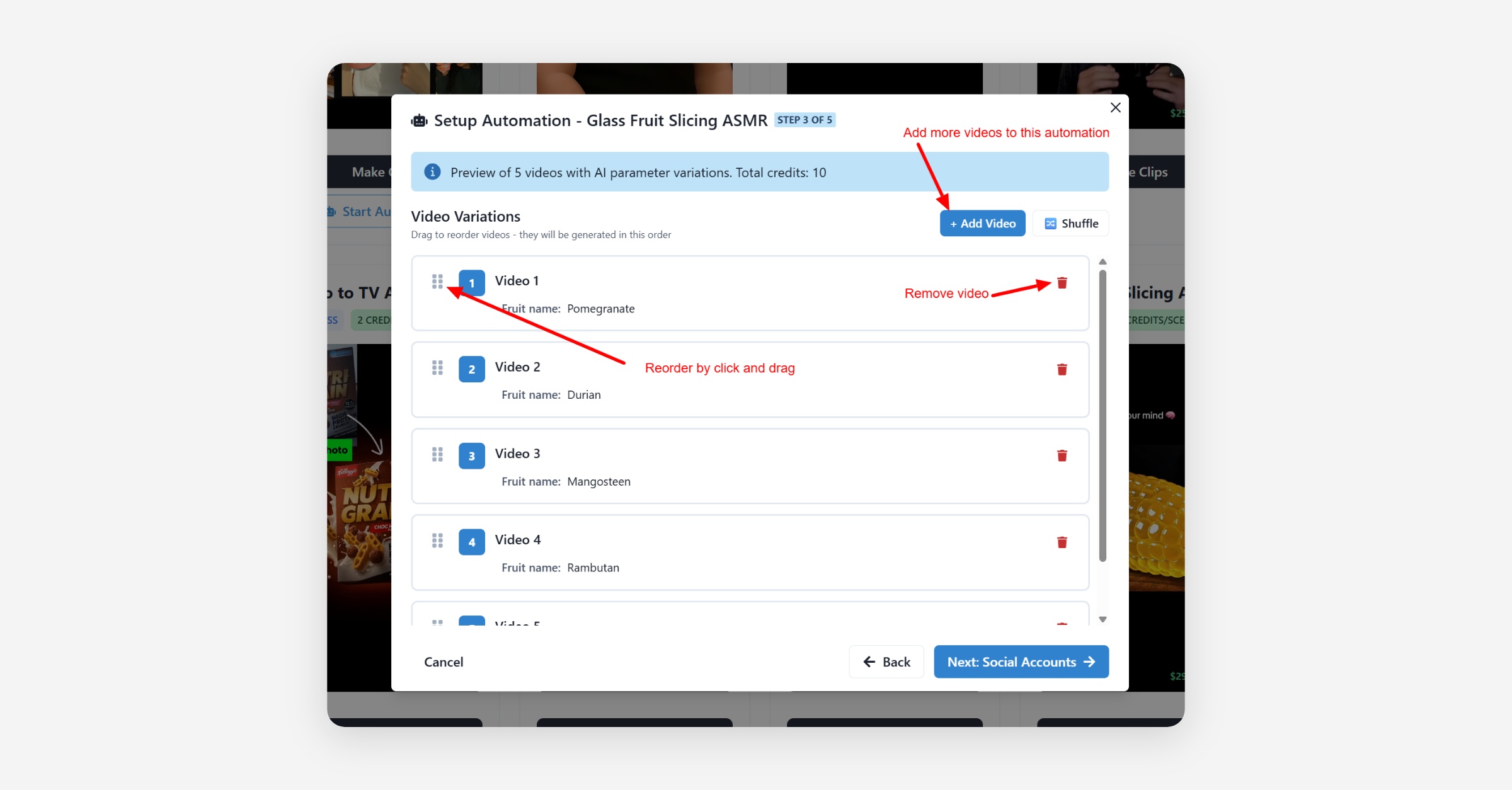
Step 3: Preview Your Videos
Click Generate Preview
AI will generate some ideas based on the selected template
It will exclude the previously used values so that there are no duplicate videos content.
Review generated content
You can reorder or remove videos from queue.
You can also add more videos to this automation by click Add video button
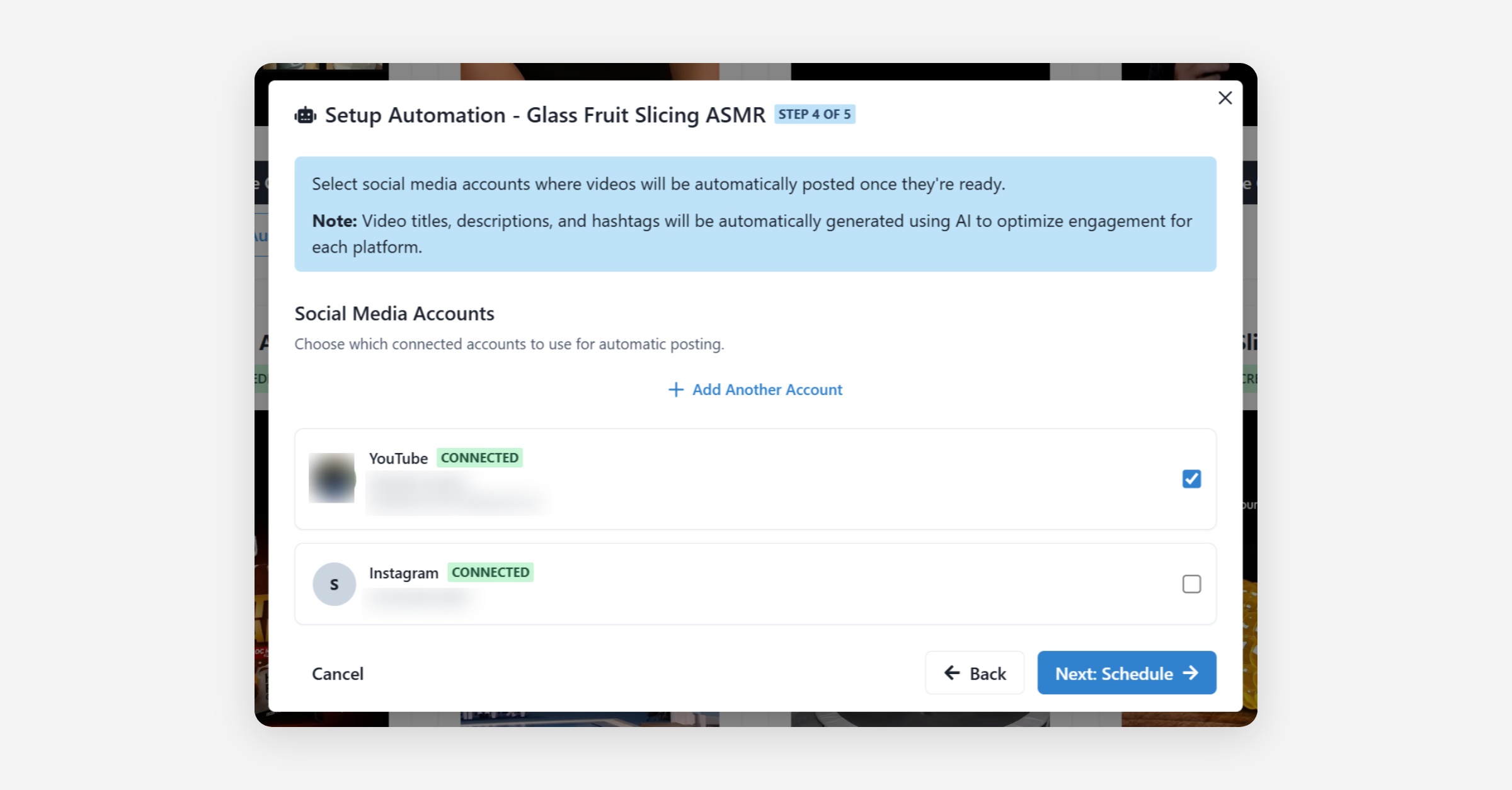
Step 4: Connect Social Accounts
Select platforms for posting:
YouTube
TikTok
Instagram
Choose specific accounts (if multiple connected)
Step 5: Posting Frequency
Set how often do you want to post videos. The sugested day and time is as per best time but you can change it by clicking change button next to each video.
After all set, click on the Start Automation button
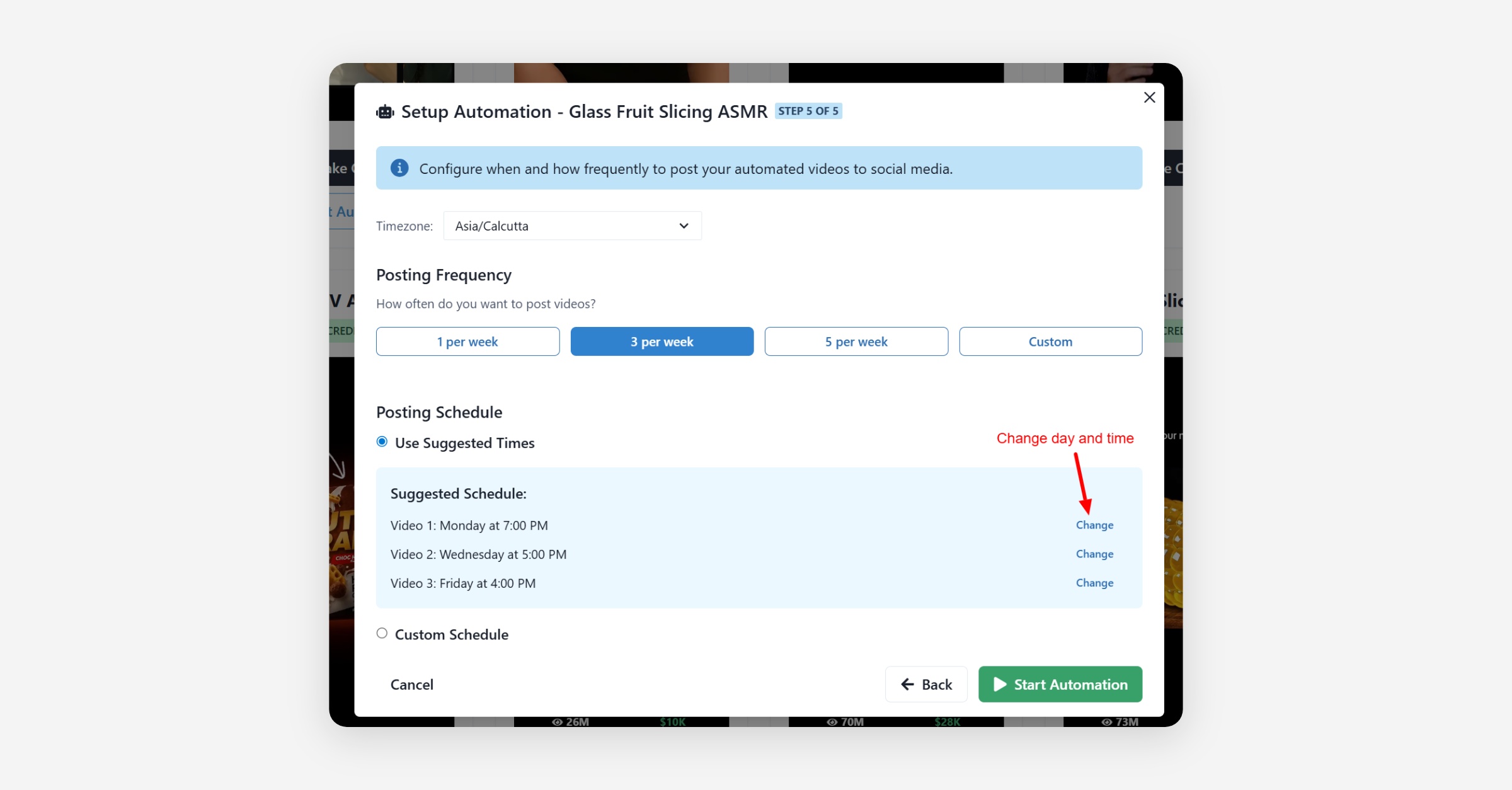
Note: Please review all content and settings carefully before clicking Start Automation, as this action cannot be undone once the automation begins.
Content Exclusion Rules
What are Exclusions?
Exclusions are rules that prevent your automation from creating repetitive or similar content. They help ensure each generated video is unique and engaging.
Why Use Exclusions?
Prevent Repetition → Avoid generating identical content
Maintain Variety → Ensure diverse video outputs
Audience Retention → Keep content fresh and engaging
Setting Up Exclusion Rules
Step 1: Access Exclusions
During automation setup, go to Configuration step
Locate Exclusions section
Click See details
The palette will display all previously used values, which are excluded by default. To re-use any value, click the cross icon next to it. That value will then be included again in the videos generated for the current automation.
Automation Monitoring and Management
Accessing Your Automation Dashboard
Click Automation tab in main navigation
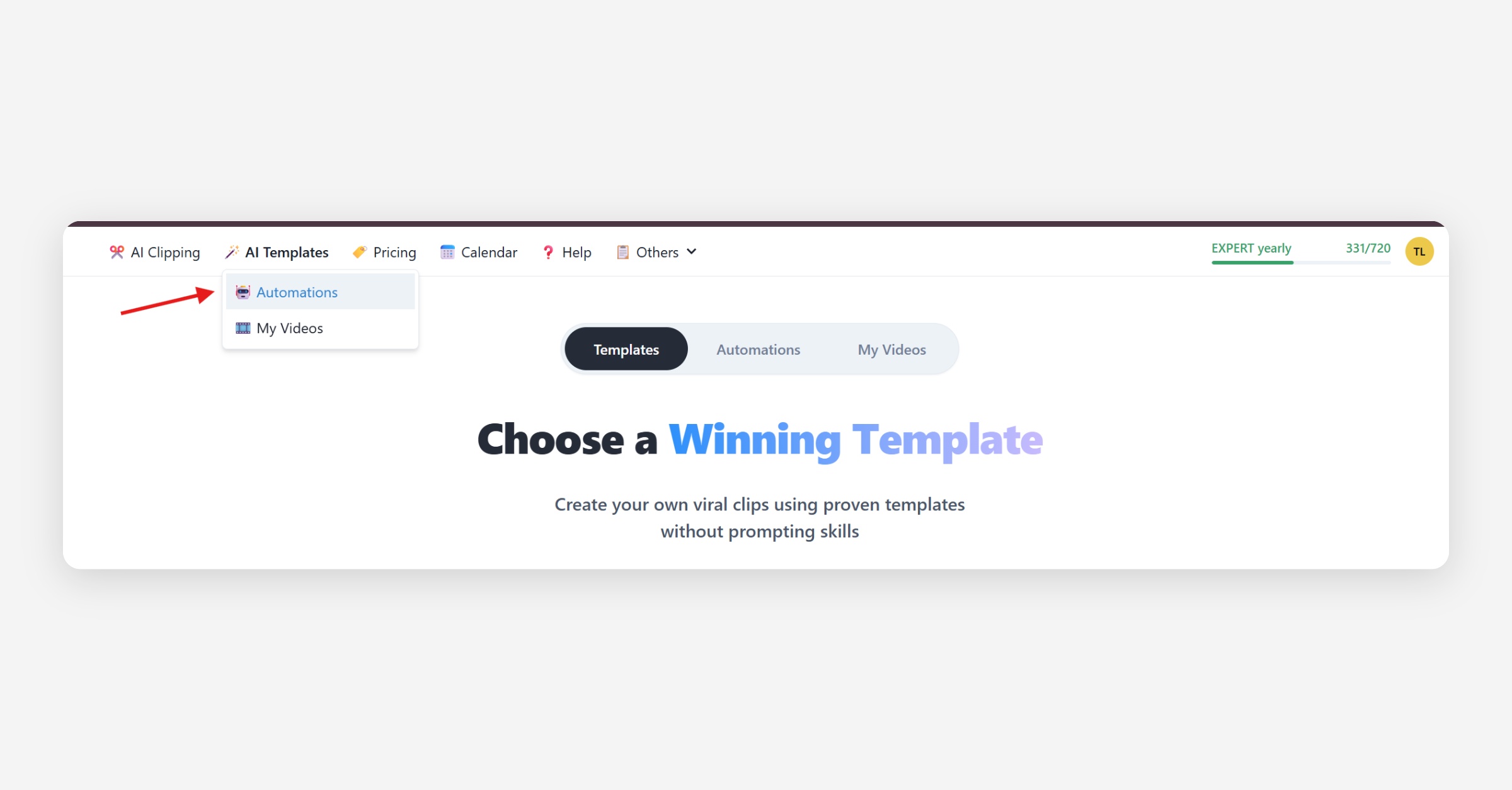
View all automations list.
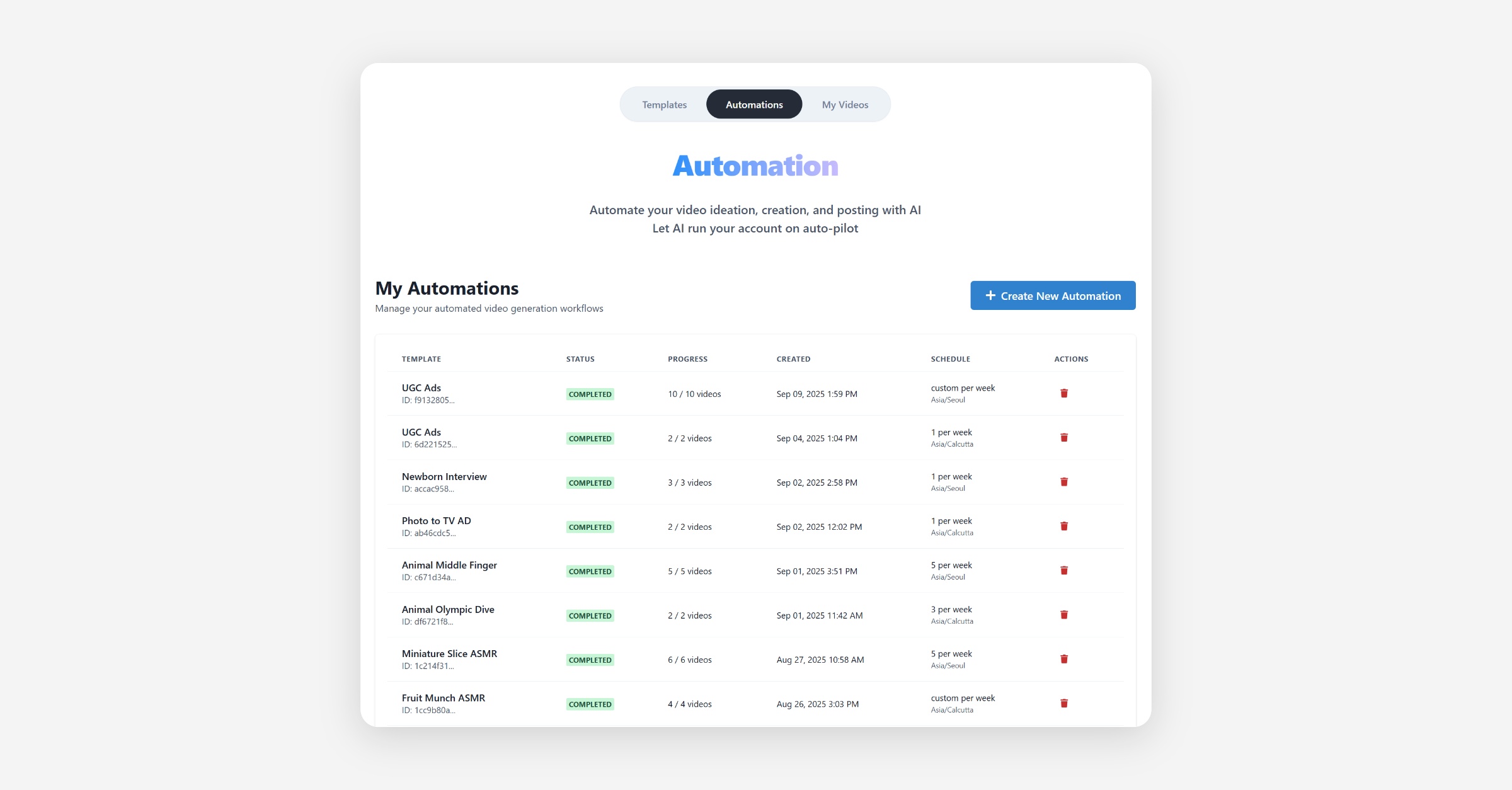
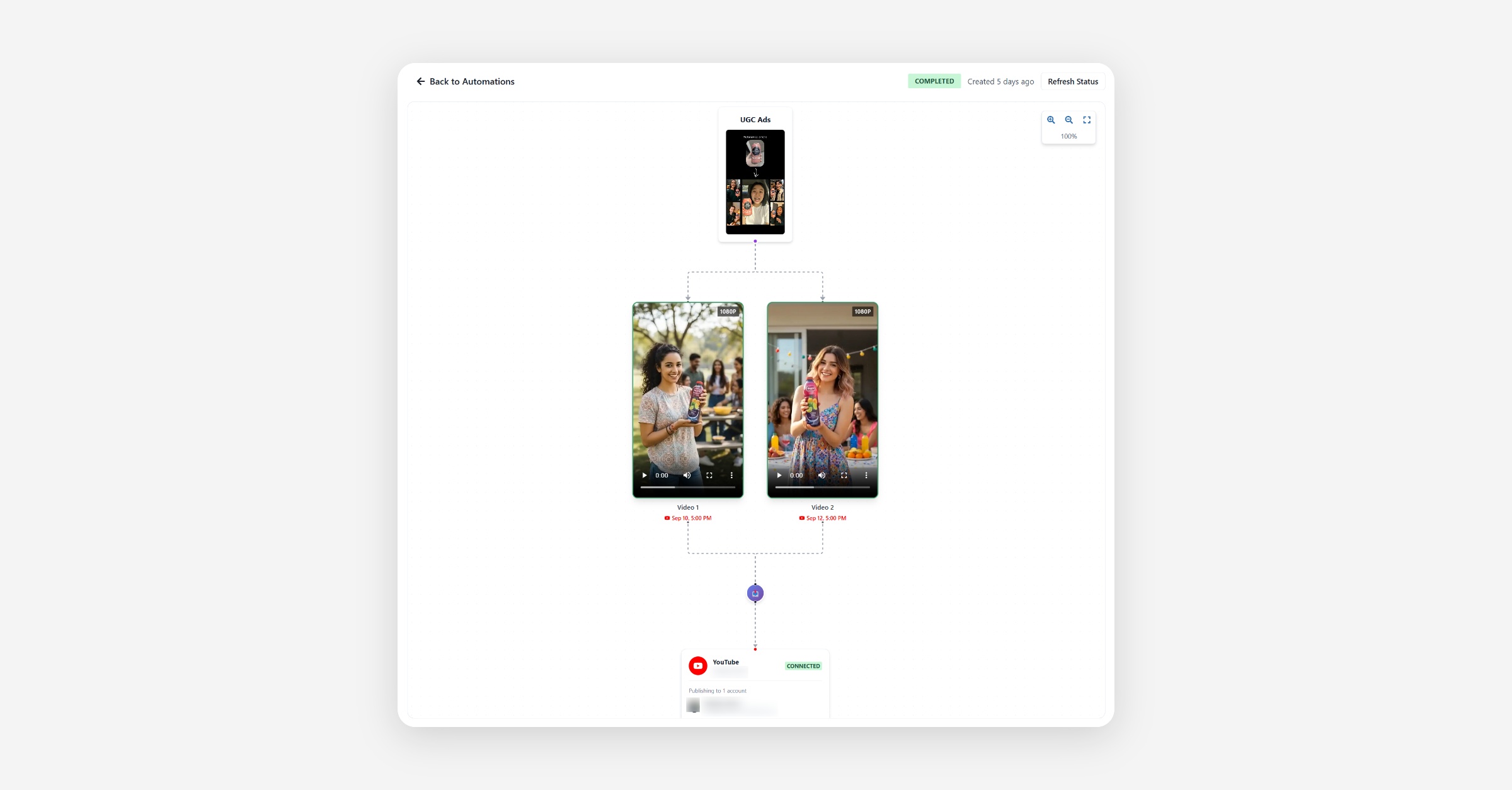
Click on any automation from the list to view the details about the automation with real time updates.
Was this helpful?