

To post the created clip to YouTube, Instagram, TikTok, or X, follow the steps below.
Click Share Button
First, click the Share button below the clip

Connect Social Accounts
Then connect your account on the platform of your choice

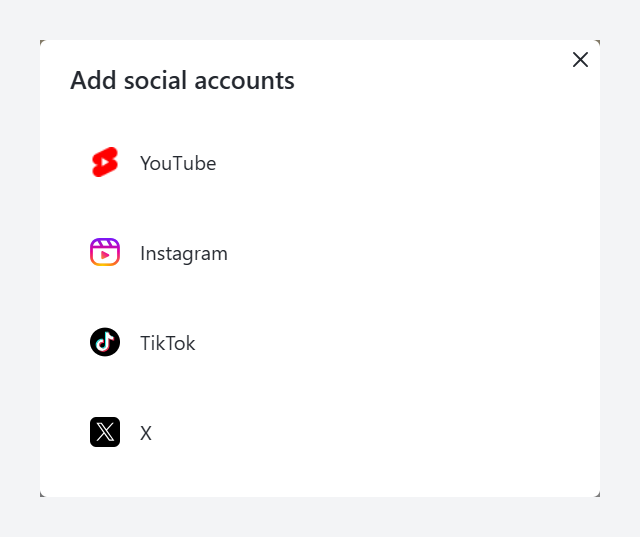
After you add your platform account, your video's title, description, and hashtags are automatically populated. You can further customize these to your liking.


You can schedule the post for a time of your choosing, or post it right away. Ssemble pre-fills the date button with the next best time to post.
To schedule, keep the suggested time or pick your own, then click the Schedule button. It will be posted at the selected time.

To post right away, clear the time with the ✕ on the date button. The button changes to Post now; click it and the clip is posted immediately.
Disconnect Social Accounts
You can easily disconnect your social accounts by clicking the ✕ buttons

Rate Limits
Each connected account can publish up to 15 posts on TikTok, 25 on Instagram, 20 on YouTube and 20 on X in any 24 hours, and at most 3 posts per minute. Platforms don't publish all of their own limits, so they can still refuse posts below these numbers, especially on new accounts. For details and what you'll see when an account reaches its limit, see Daily Posting Limits for Social Accounts.
Sources
Connect TikTok Account to Ssemble
Visit tiktok.com
Log into tiktok.com. You'll see several login options for TikTok:
Login using a QR Code
Login with Username and Password
Continue with Facebook
Continue with Google

Choose the option you're most comfortable with. After successfully logging in, head over to ssemble.com and select your generated short from the landing page.
Click the share icon, and a popup will appear. Choose "Add account" and select the TikTok option. A brief informational popup will appear.


Click "Continue" and accept the consent. After a few seconds, you'll be connected to the Ssemble sharing feature.

Troubleshooting:
If connection fails, try logging out and back in to both TikTok and Ssemble
Clear your browser cache if you experience any issues
Check your internet connection stability
Make sure you've granted all necessary permissions
Connect Instagram Account to Ssemble
Preparing Your Instagram Account for Ssemble Integration
Instagram’s API has strict requirements for account connections, especially when posting videos and managing content through third-party platforms like Ssemble. To ensure a smooth integration, follow the steps below.
Step 1: Convert Your Instagram Account to a Business or Creator Account
A Personal Instagram account does not support API access. You must switch to a Professional Account (either Business or Creator).
How to Convert to a Business/Creator Account
Open the Instagram app.
Go to your Profile.
Tap the Menu (three horizontal lines) in the top right corner.

Select Settings and privacy.
Tap Account type and tools.
Choose Switch to professional account.

Select either Business or Creator.

Follow the on-screen steps and complete the setup.
https://help.instagram.com/502981923235522/
✅ Tip: A Business Account is best suited for brands and companies, while a Creator Account is ideal for influencers, content creators, and public figures.
Step 2: Check Your Instagram Account for API Eligibility Even after linking your accounts, Instagram API access may be restricted if your account is too new, inactive, or flagged.
How to Check API Eligibility Ensure your account has regular activity (posting, engaging). Avoid violations of Instagram's community guidelines. Your account should not have age or country restrictions enabled. ✅ Tip: If you’re facing API restrictions, try contacting Meta Business Support for assistance.
Troubleshooting Common Instagram Connection Errors If you encounter issues while connecting your account, check the following:
Not a Business/Creator Account Fix: Follow Step 1 to switch your account type.
API Access Denied Fix:
Ensure your Instagram account is active and compliant. Reconnect by removing Ssemble from Apps and websites from Instagram settings of your profile and trying again. Final Checklist Before Connecting to Ssemble ✅ Instagram is a Business/Creator account
✅ All required permissions are granted
✅ Your Instagram account is eligible for API access
Once you’ve completed all the steps, your account is fully prepared for integration with Ssemble! 🚀
How to connect Instagram account to Ssemble
Click on the Add Account button

Choose Instagram option
From the popup, choose Instagram option

Click Continue
You will see an informational popup with details about the connection process. Click "Continue" to proceed to the Facebook login page.

Login with Instagram
You have use the Instagram business account to login.
Allow permissions
You will be asked to grant the following permissions. Please approve them, as they are necessary for posting content.

If you've followed all the steps correctly, you should now have successfully connected your Instagram account to Ssemble.
Connect X Account to Ssemble
Click the Share button on a clip, then click Add Account and choose X.
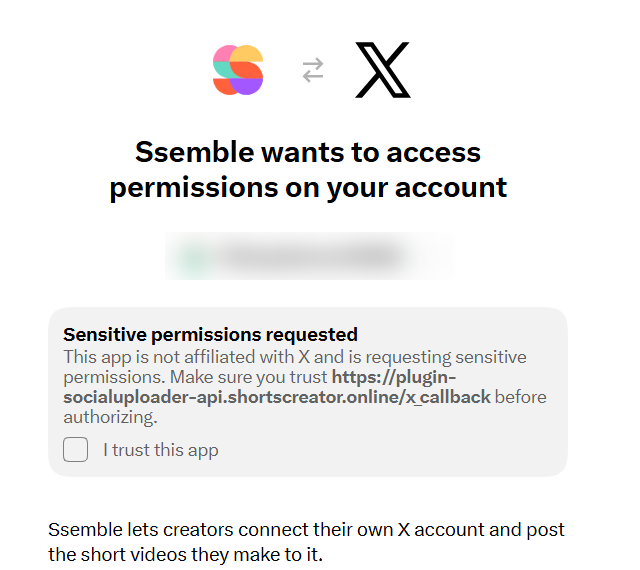
X shows its own approval screen ("Ssemble wants to access your account") with a "Sensitive permissions requested" warning. X adds this warning for all pay-per-use apps.
Tick "I trust this app", then click Authorize app.
Posting to X
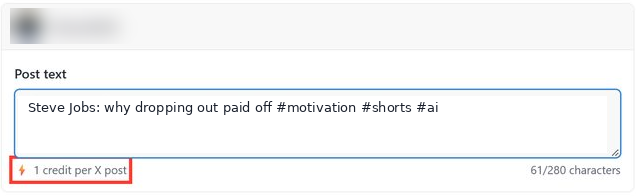
Each post to X uses 1 credit (posts with links included). If a post fails because of an error, the credit is refunded automatically. Rescheduling a failed X post uses 1 credit again.
X posts allow 280 characters, and each link counts as 23 characters.
Videos must be 2:20 or shorter unless the X account has X Premium. The scheduler warns you about longer clips.
Posting to X is available on the Ssemble website only. It is not available through the Ssemble API or MCP.
How to Disconnect Social Media Accounts
Click on any Shorts project from the Dashboard.
Tap the share button at the bottom of any Shorts clip.

Click the ✕ button next to the linked account to disconnect it.

How to Change Social Media Accounts
If you want to connect a different TikTok or Instagram account, please follow these extra steps:
Go to the official TikTok or Instagram website.
Log out of your current account.
Return to ssemble.com
Click Add Account to link a new account.