
Calendar
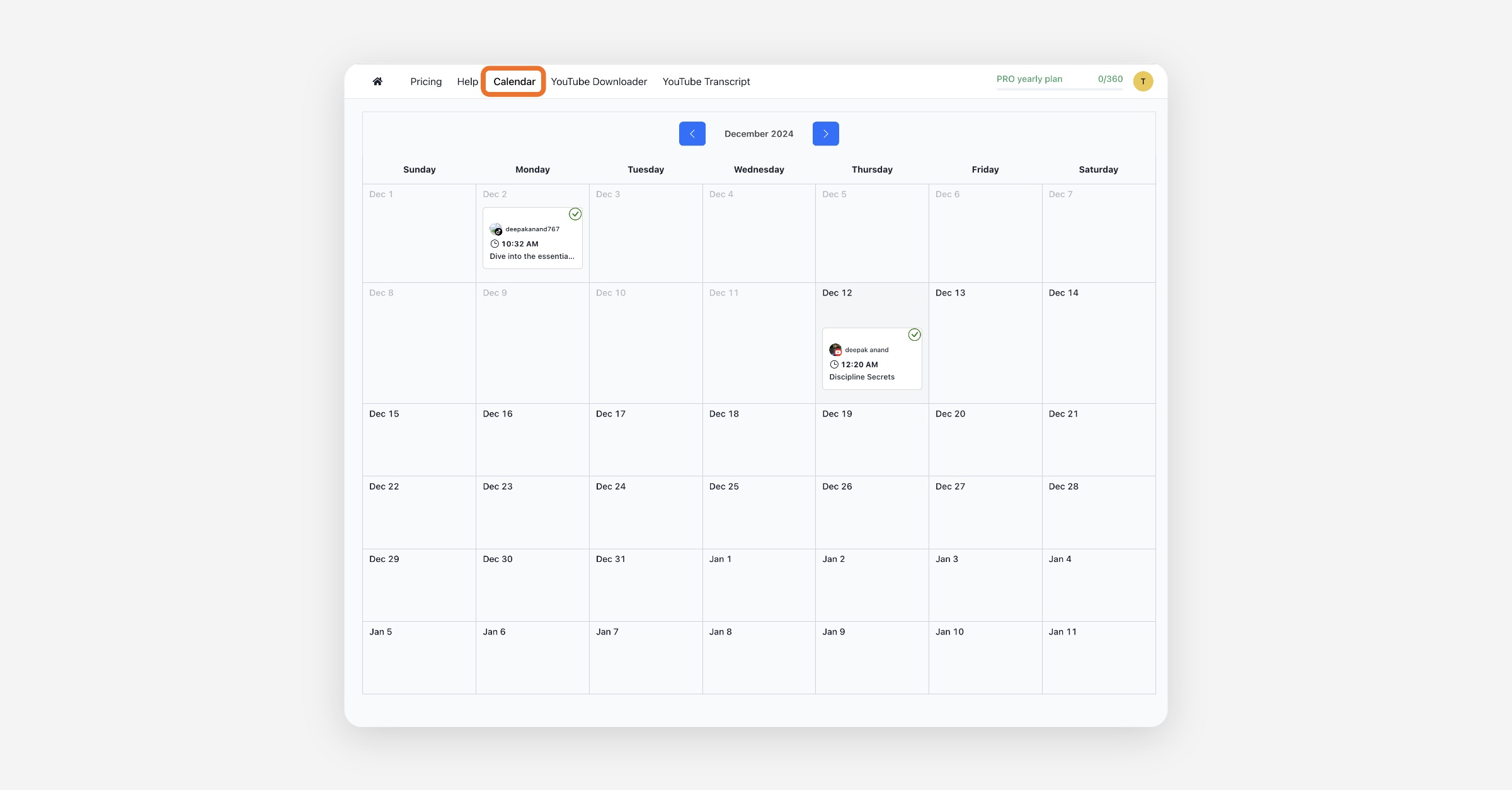
Go to Calendar
The Calendar page lets you see at a glance the clips you've deployed or scheduled.
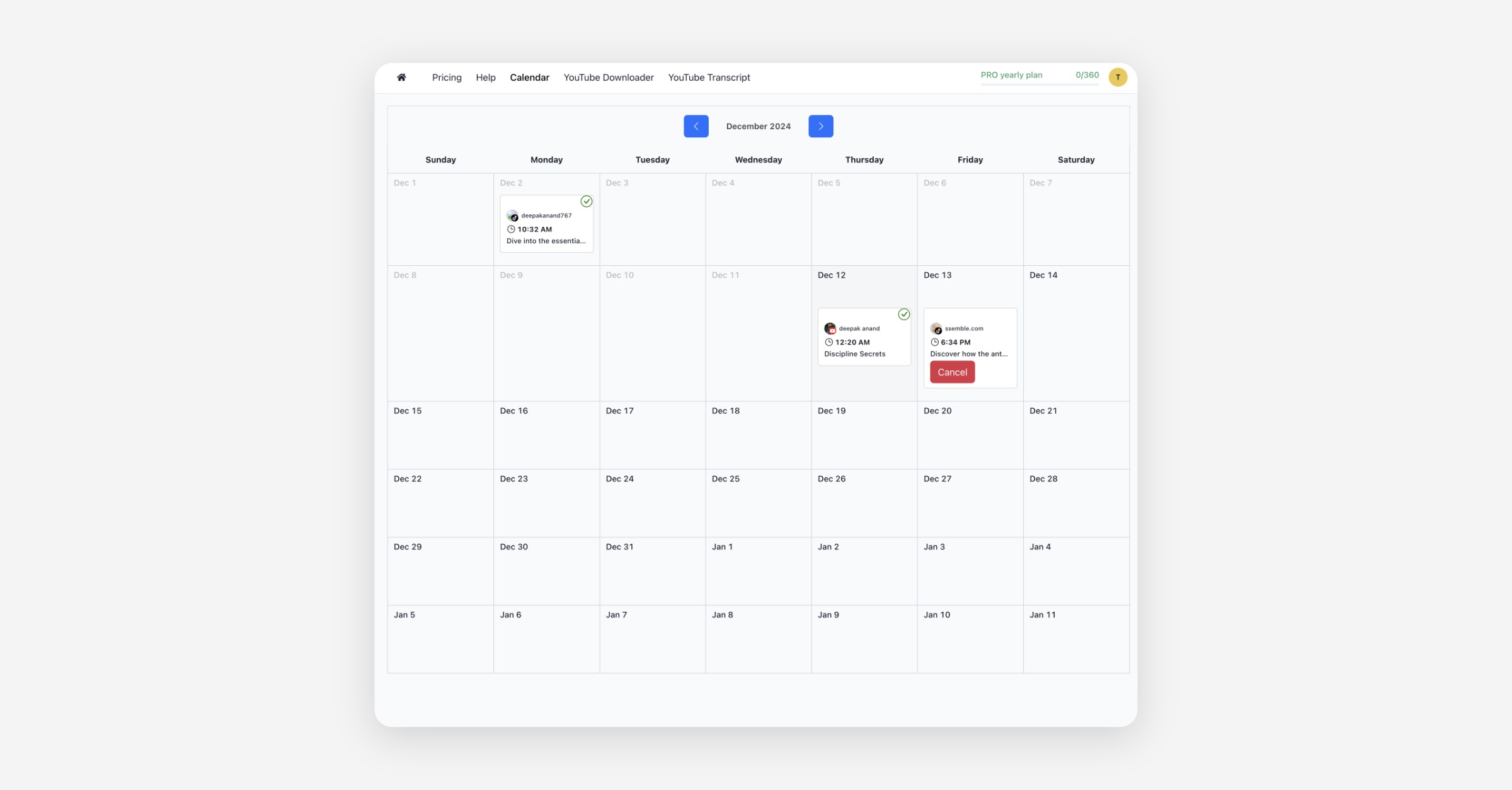
Cancel posts
If you want to cancel the scheduled clip distribution, you can click the Cancel button.
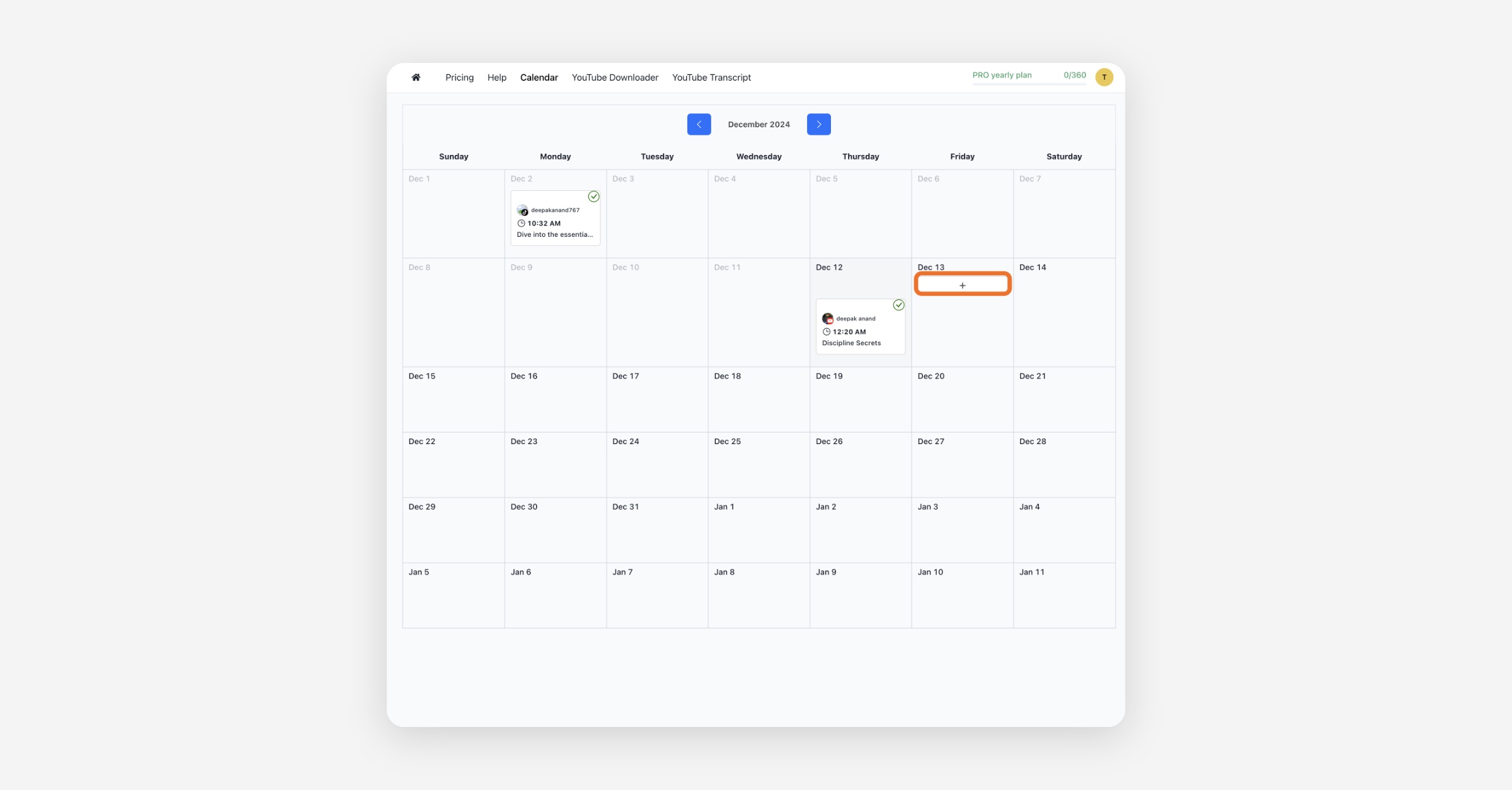
Schedule posts on the days you want
If you want to distribute your clip on a specific date, you can also schedule to publish it right here by pressing the Plus button and selecting the project and clips.
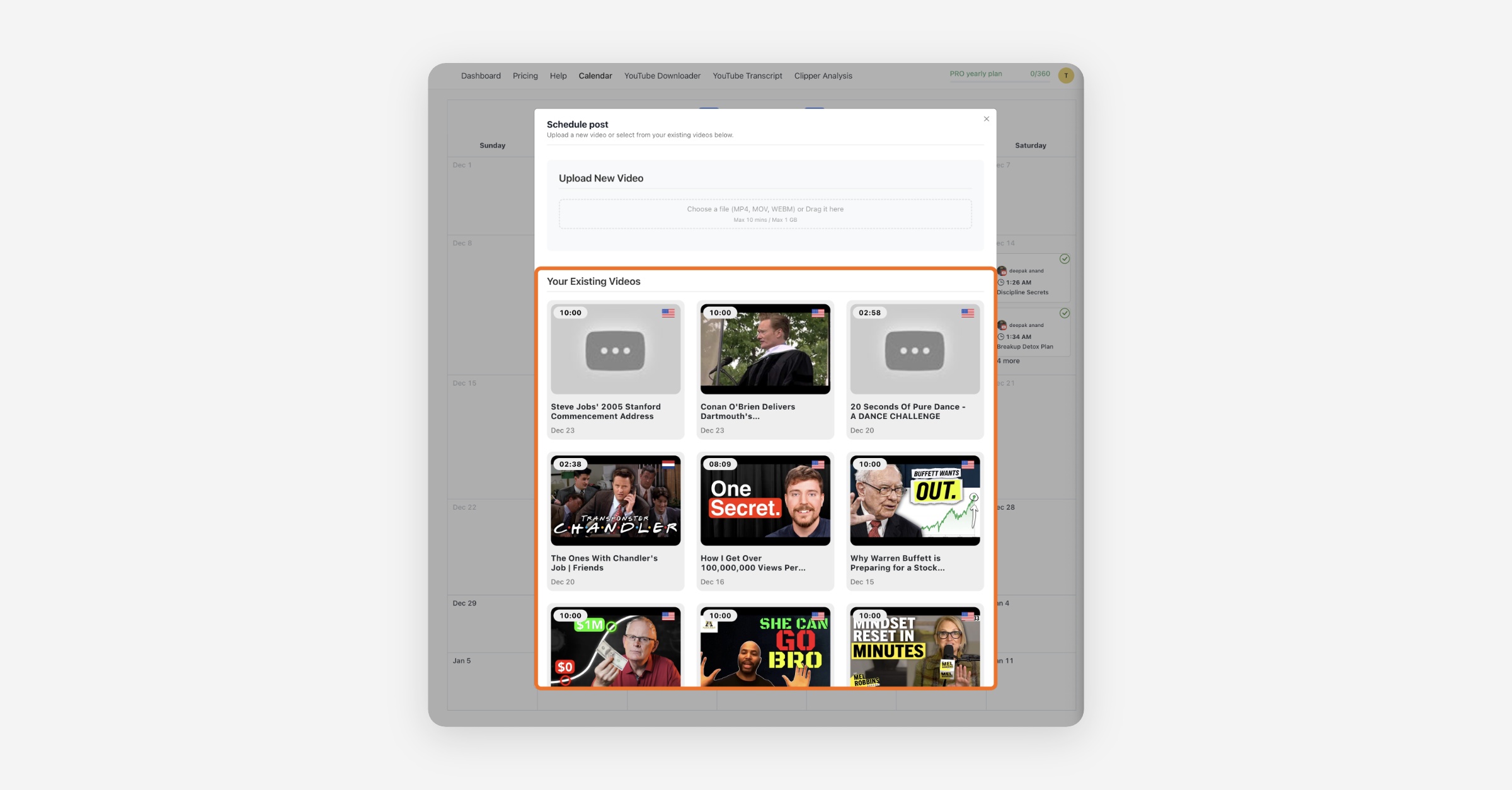
Upload your own file
You can upload your own video file and schedule to post it
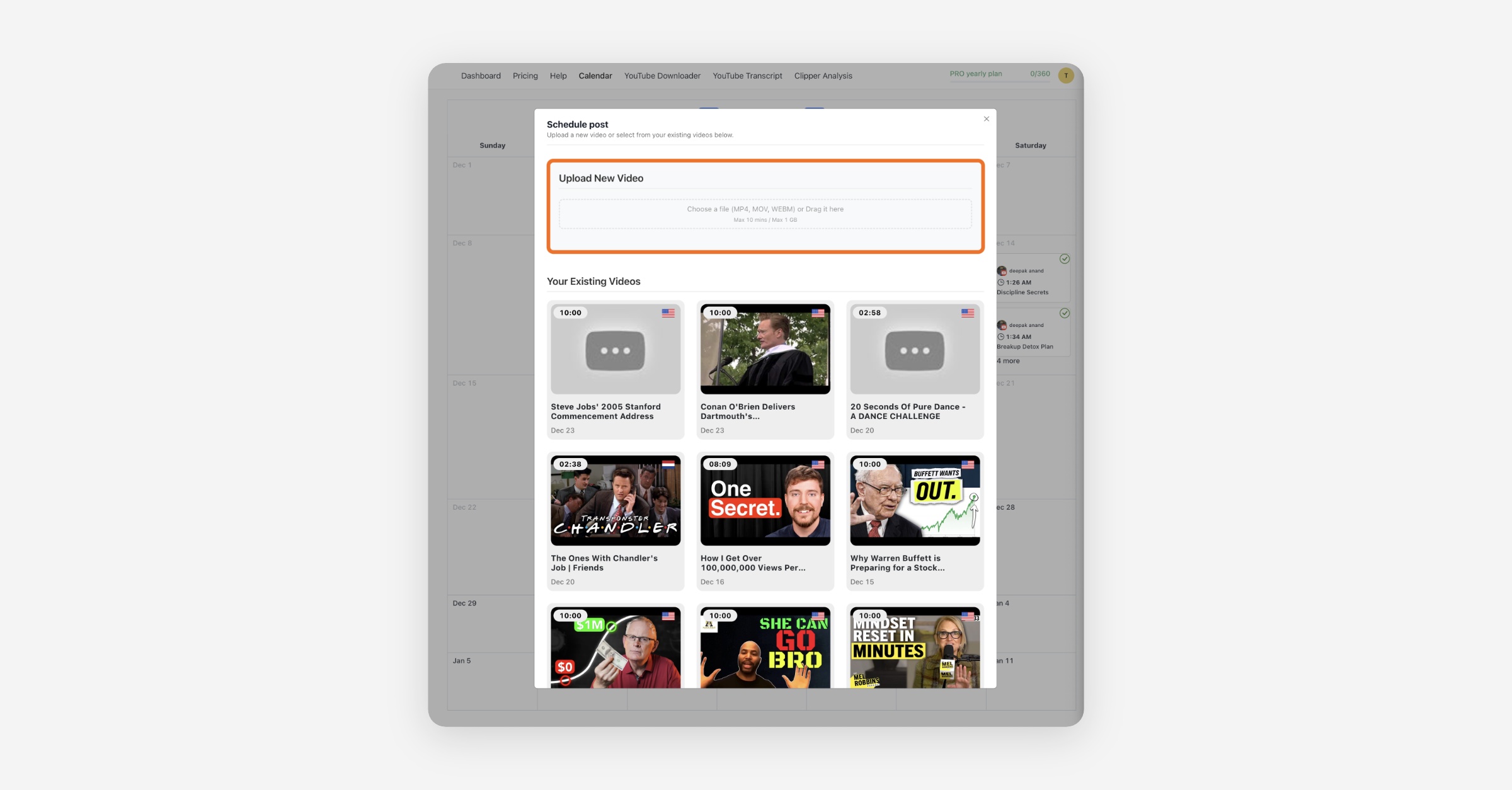
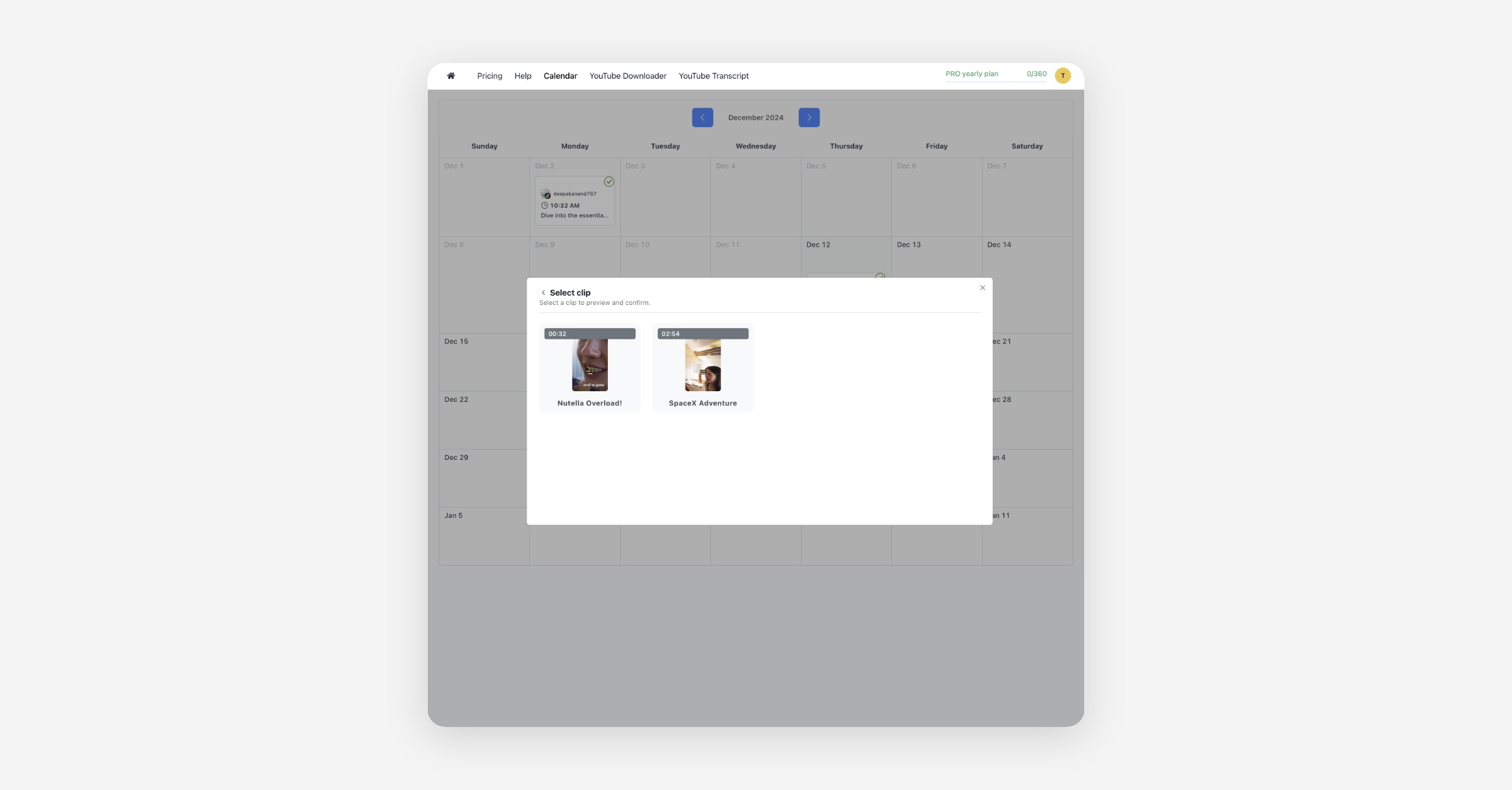
Select a clip from your projects
Or Select the desired clip from your project
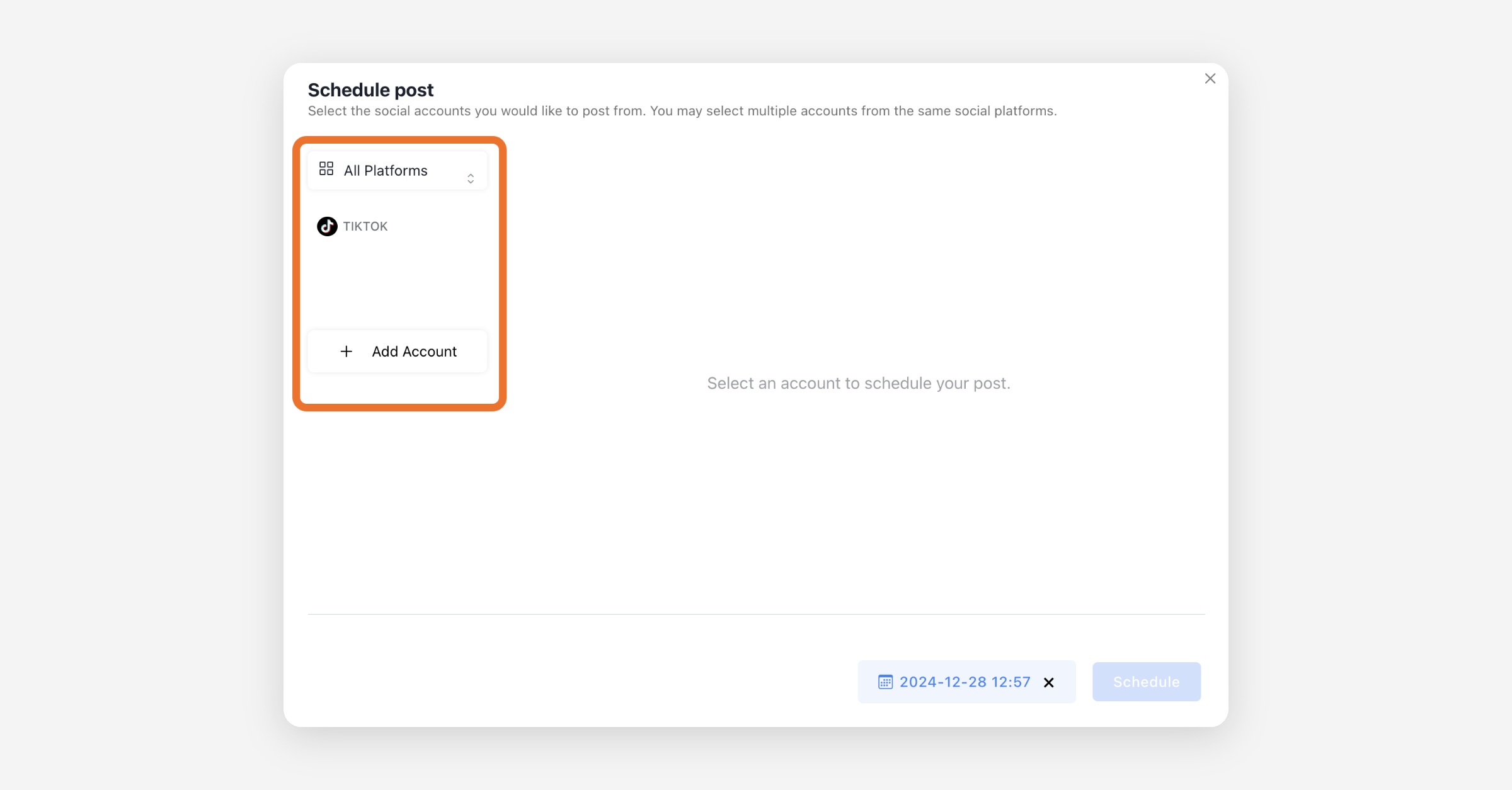
Schedule
Connect your favorite TikTok, YouTube, and Instagram accounts. Then choose the platform you want to post on.
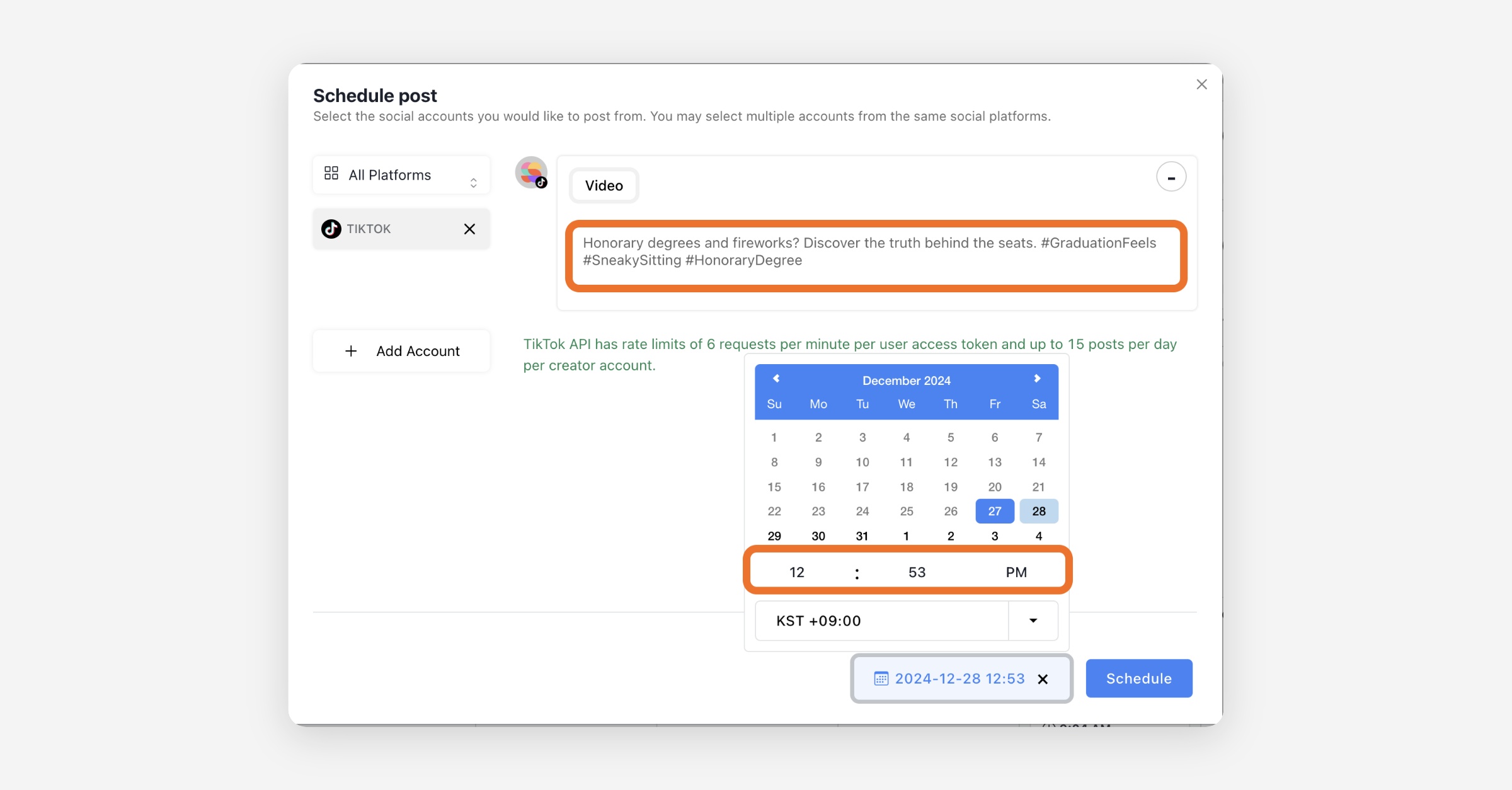
Enter your desired title, caption, and then, set your preferred time and hit the schedule button
How Do I Edit Scheduled Post Descriptions
Open your Ssemble calendar
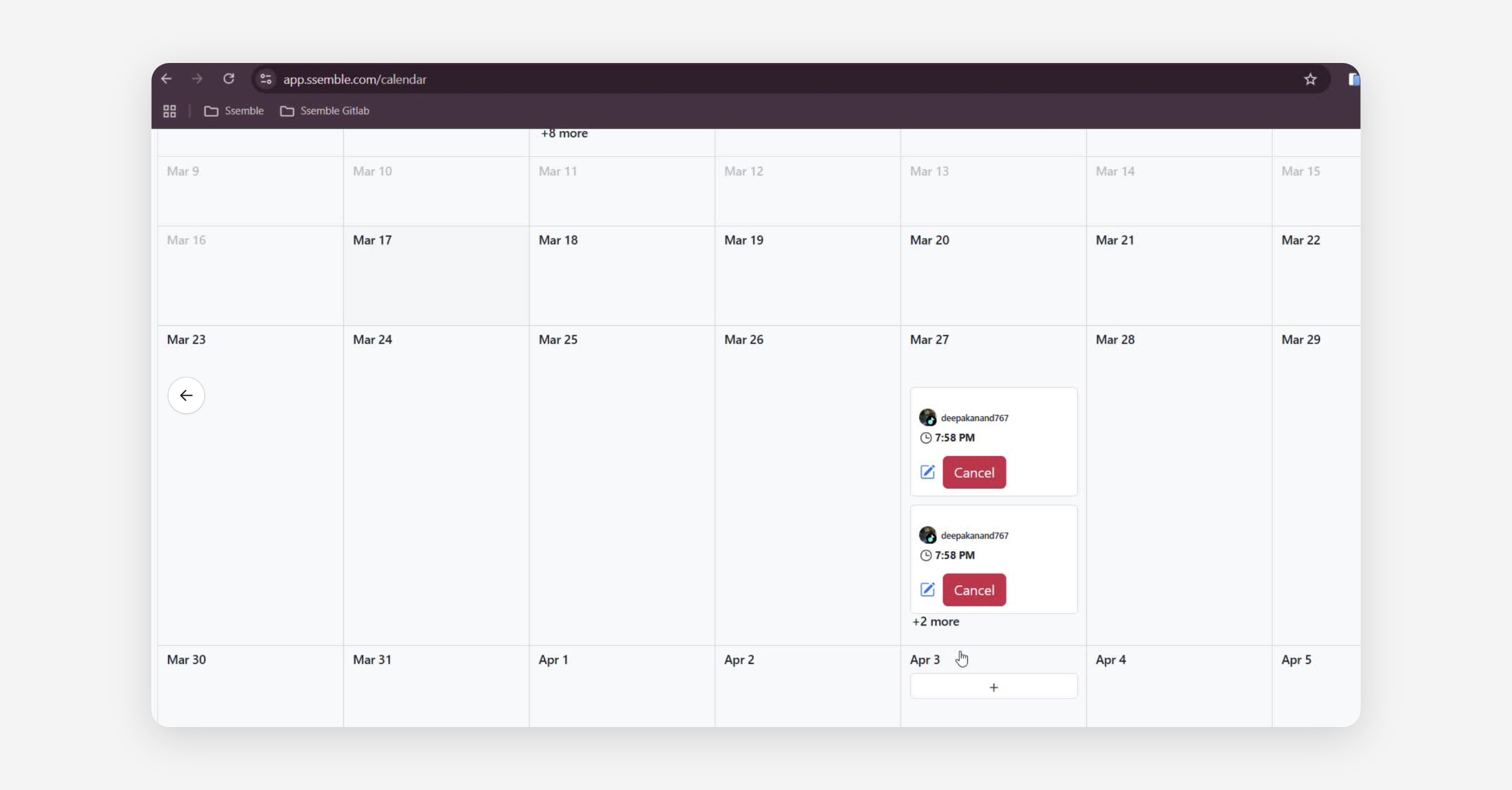
Find the edit icon on any upcoming scheduled post.

Click the icon to update your post details
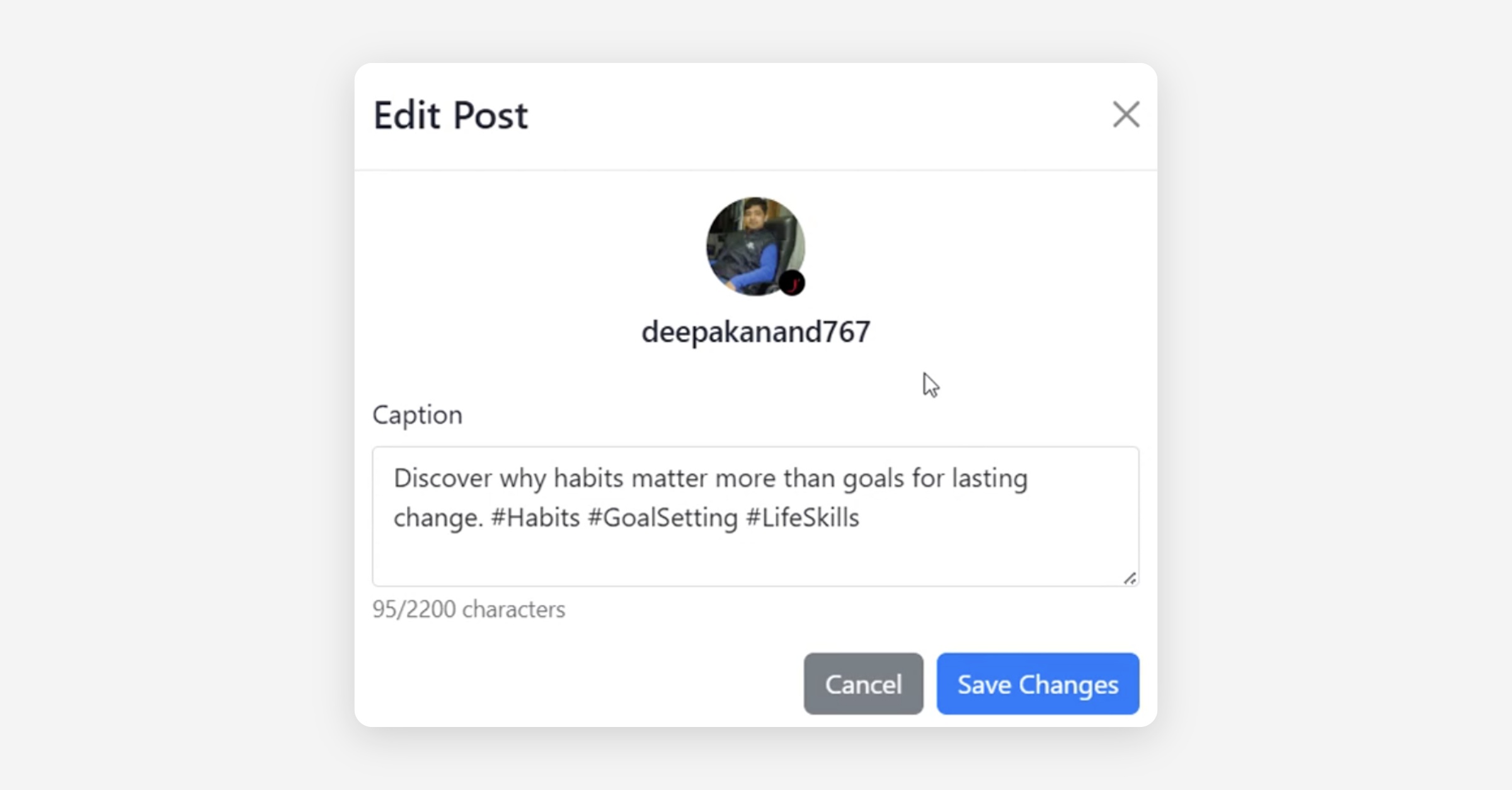
Save your changes.
Was this helpful?