

A gaming stream is a wide video with a small face cam on top of the game. In a normal vertical clip you either see the whole frame small, or lose the streamer. Game mode fixes that: it puts the streamer's face cam on the top part of the clip and the gameplay below it, so both fill the screen.
Make split screen clips from a stream
- On the
Get Shortspage, paste the link of the stream (or upload the file). - Under Video type, choose Game. Video type sits just above the templates.
- The preview on the right changes to a split screen: face cam on top, gameplay below.
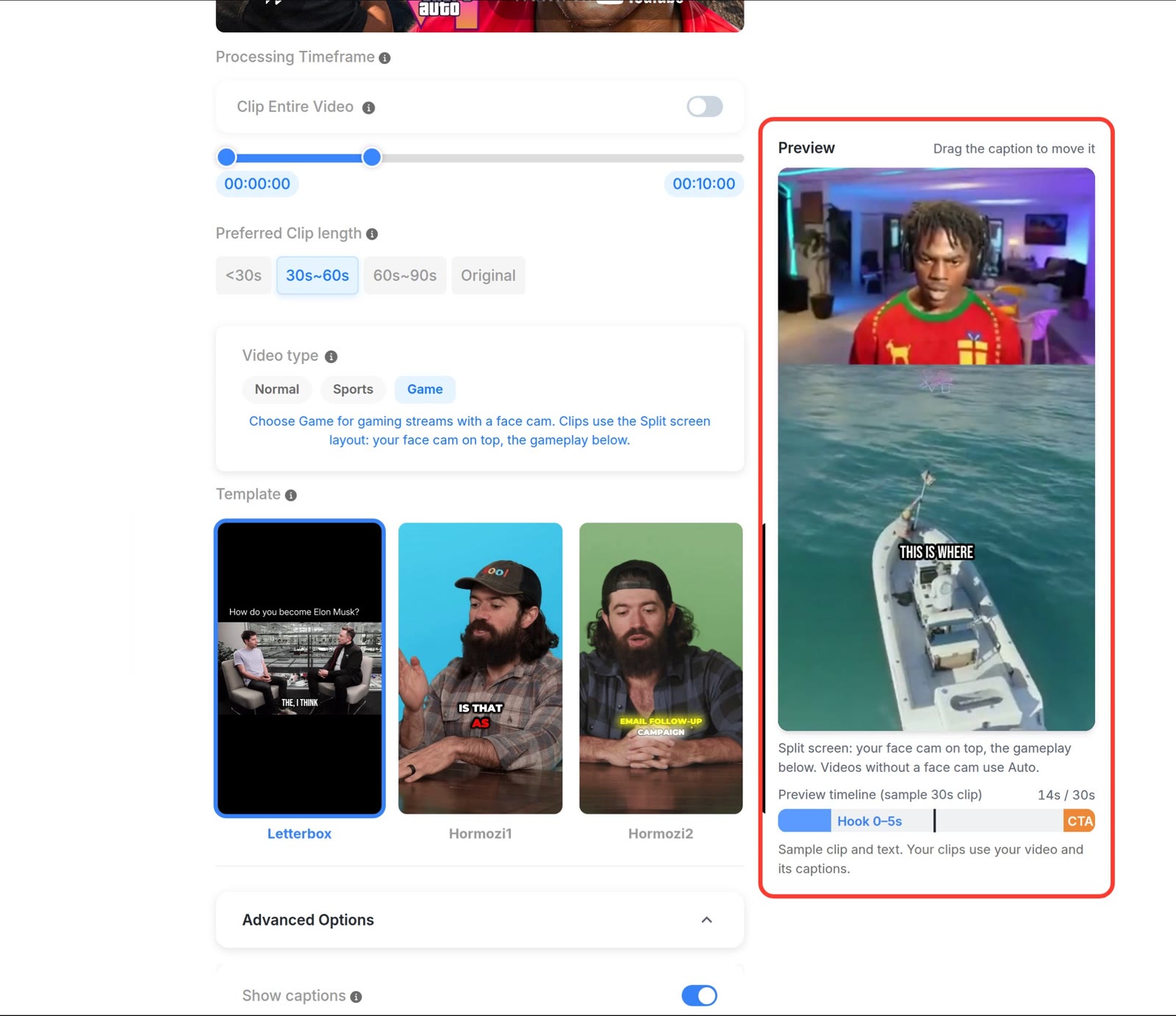
- Click Get Shorts.
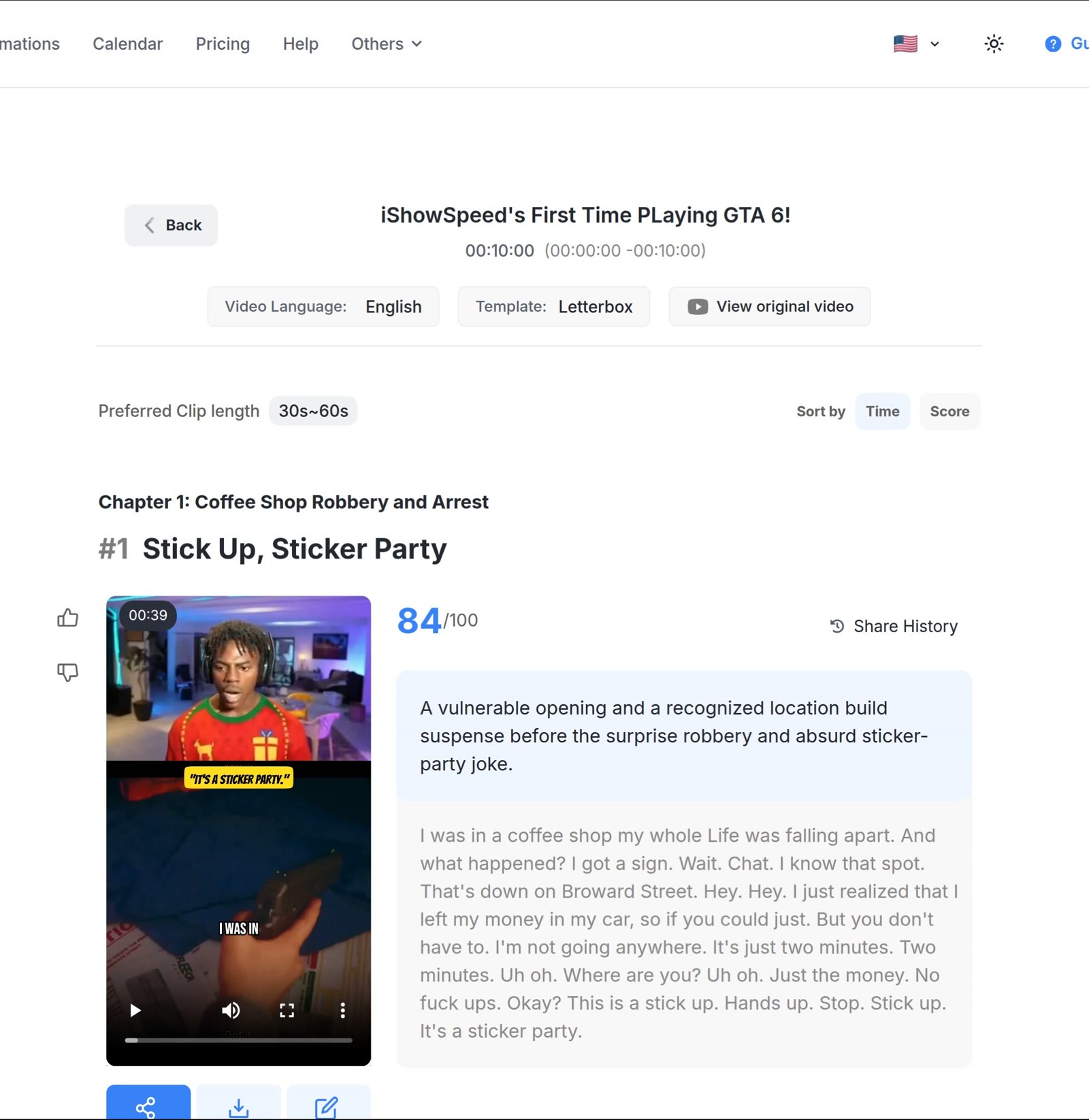
Every finished clip shows the streamer on top and the game below. Hook titles sit at the top of the gameplay area, so they don't cover the streamer's face.
Tip: Game mode costs the same as any other clip. It does not change how many credits a video uses.
What Game mode changes
Choosing Game sets the Layout to Split screen. You can see it under Advanced Options on the Get Shorts page.
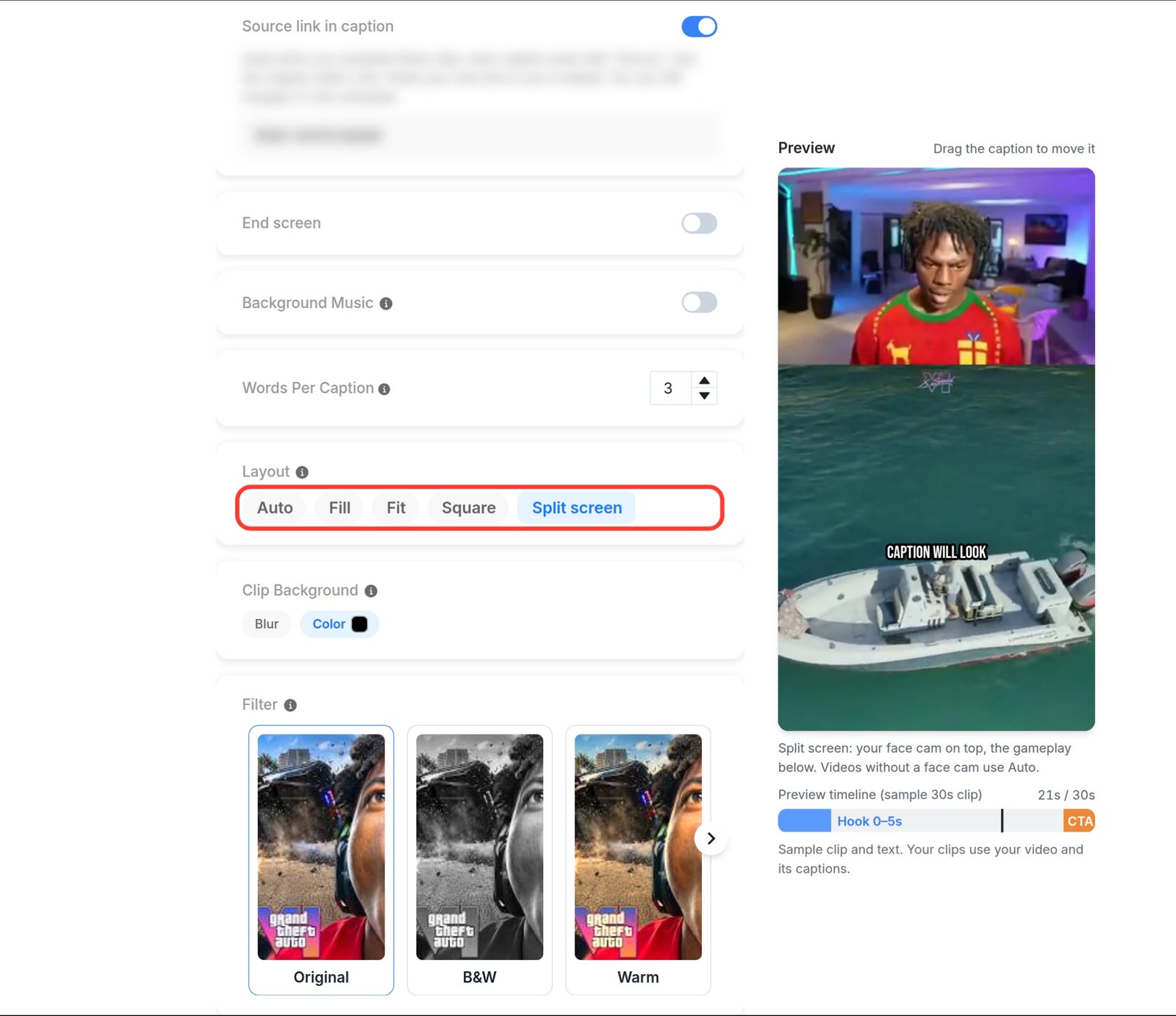
- You can still pick another layout (Auto, Fill, Fit or Square) after choosing Game.
- You can also pick Split screen yourself while the Video type is Normal.
- If you switch from Game back to Normal or Sports, the layout goes back to Auto.
- Split screen is not saved as your default layout. Choose Game again for your next gaming video.
Which videos it works with
Split screen works when the streamer's face cam is on screen together with the game:
- a webcam box in a corner of the video
- a streamer cut out over the game (green screen)
Ssemble finds the face cam in each clip by itself. You don't need to mark where it is.
A clip is made with the Auto layout instead when:
- there is no face cam in that part of the video (for example gameplay with voice only)
- the whole screen is the camera, with no game behind it
- the face cam moves to a different place during the clip
- the video is vertical or square
This is decided for each clip. One video can give you some split screen clips and some Auto clips.
Note: A very small face cam is enlarged to fill the top of the clip, so it can look softer than the gameplay.
Change the layout of one clip
- Open your project and click the Edit (pencil) button under the clip.
- Go to the Style step and scroll down to Layout.
- Pick another layout, for example Fit. Clips made with split screen also show a Split button, which brings the split screen back.
- Click Save & Compile to apply the change.
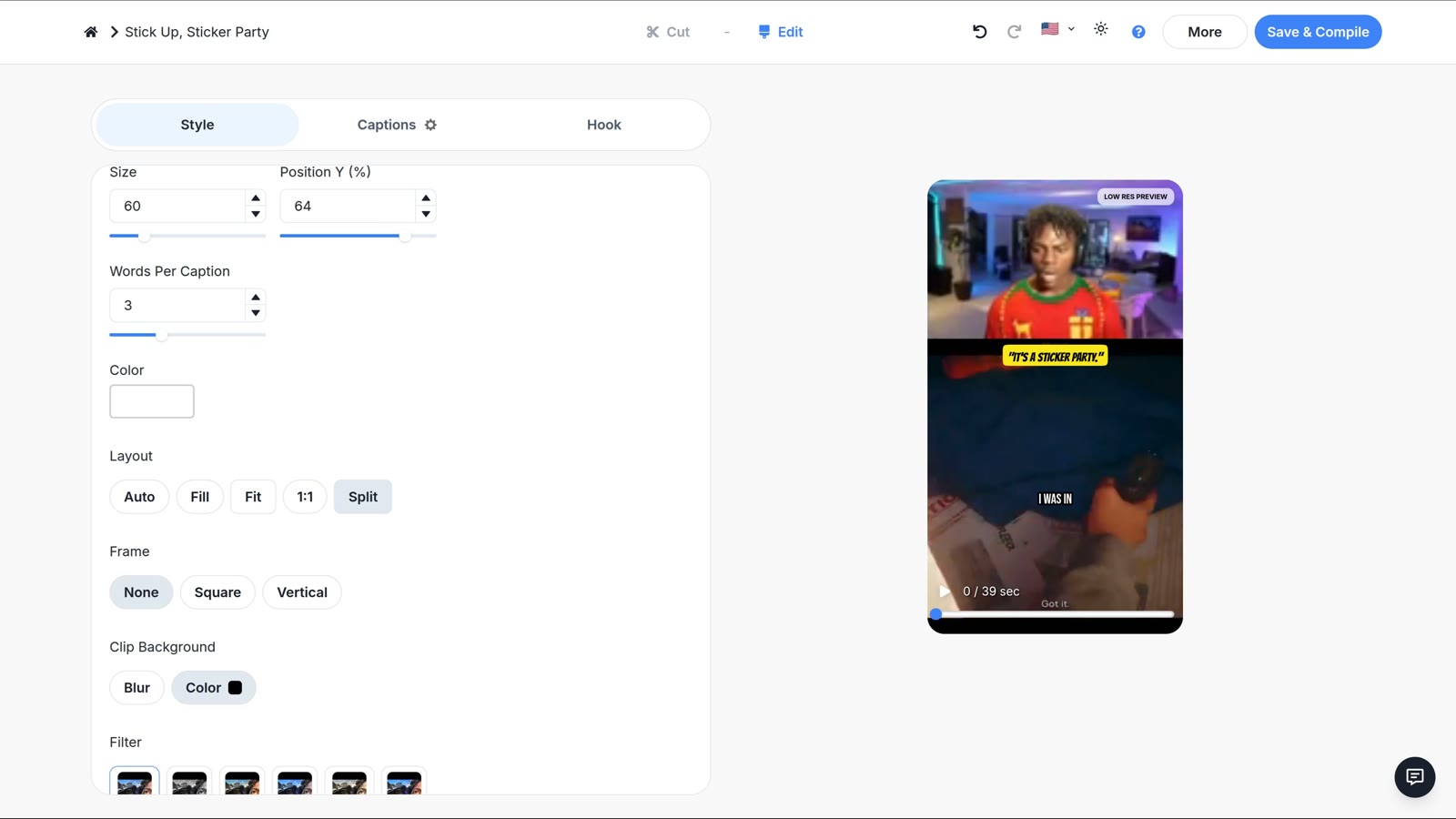
The Split button only appears on clips that were made with the split screen layout.
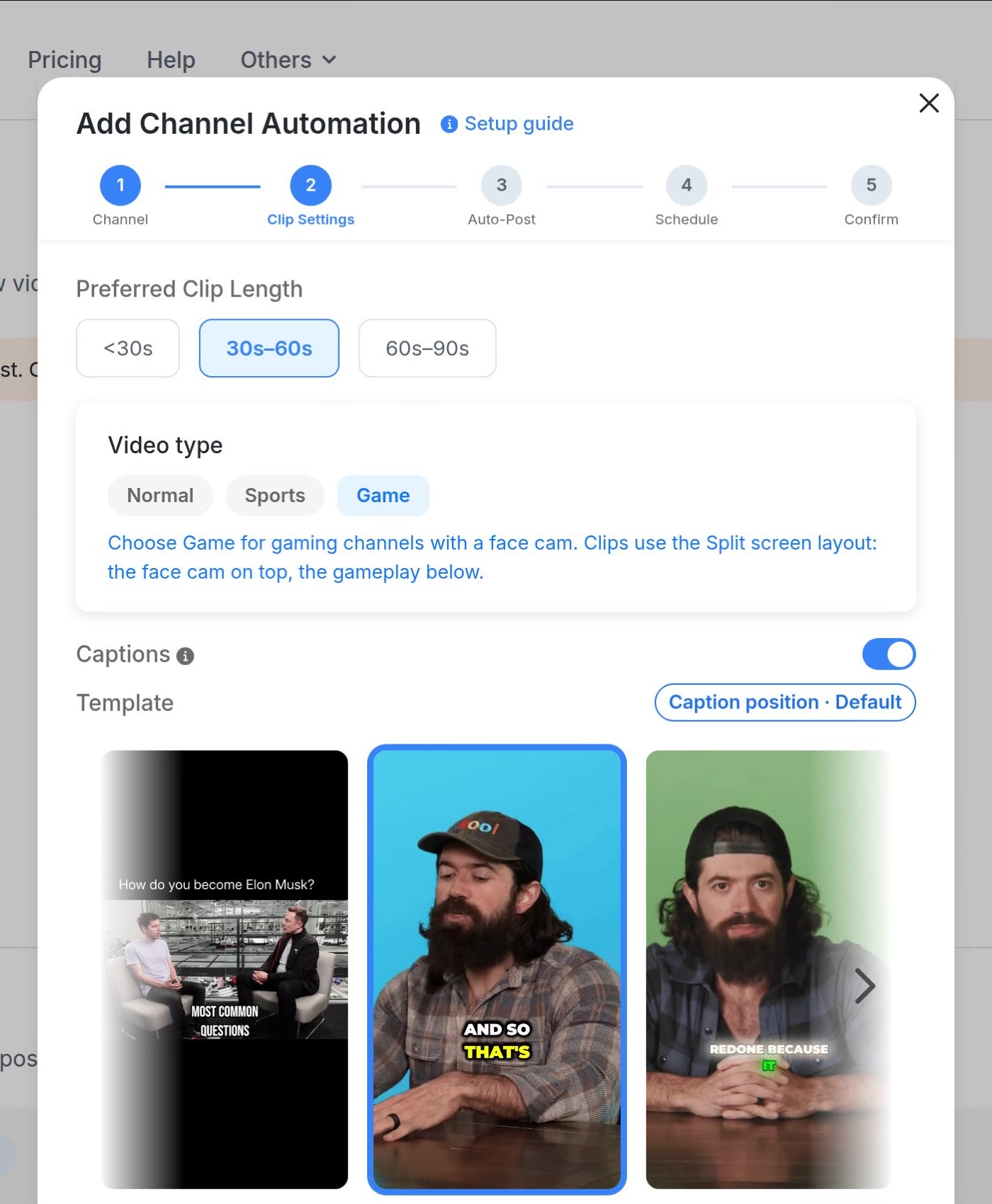
Use it in Channel Automations
When you add a channel, or edit an automation's settings, choose Game under Video type in the clip settings. The layout is set to Split screen for every new video from that channel. The automation keeps this setting.
Use it with the API
Send "layout": "split" when you create shorts. Clips without a face cam use the Auto layout. See the API docs.